
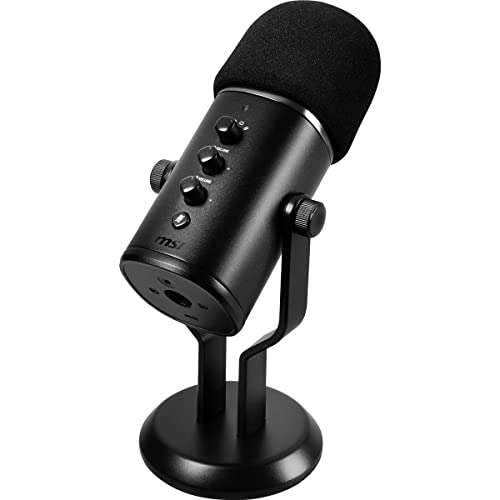
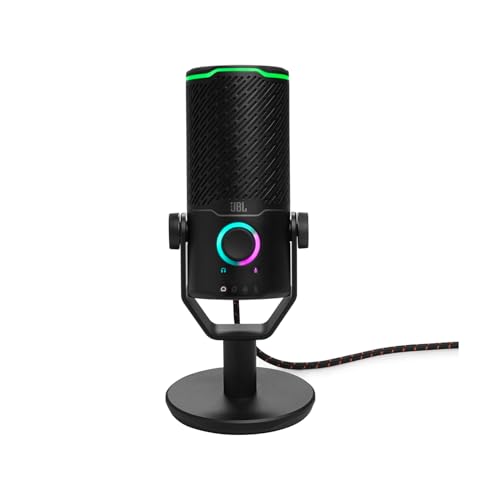
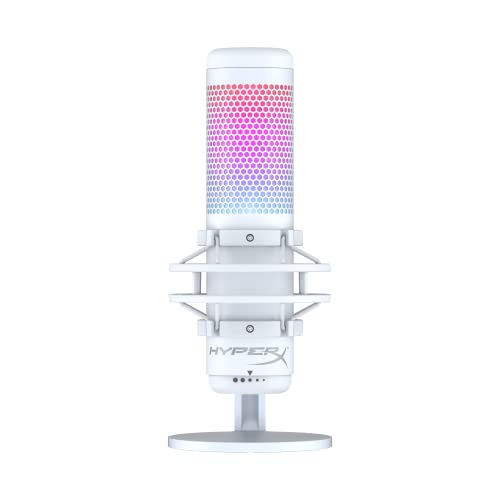
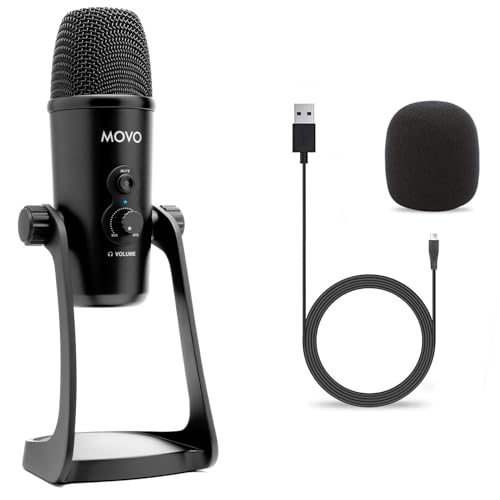
What are the best microphones for PC?
The Windows-compatible microphones with the highest overall scores are as follows:
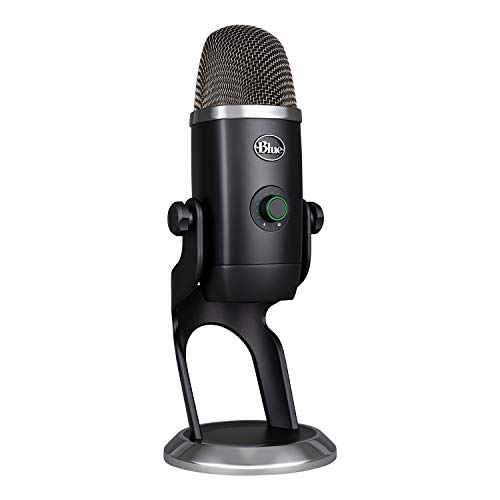
- Blue Yeti X (Overall score: 8.82 points)
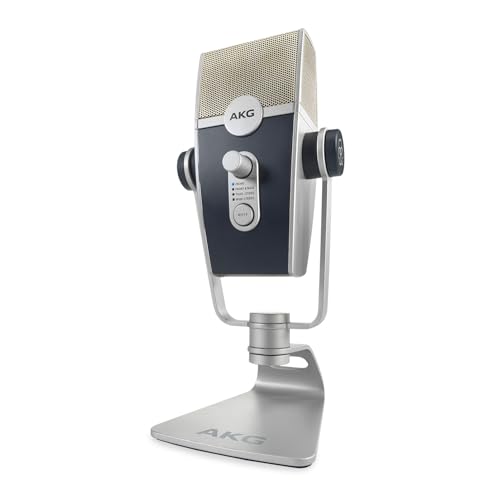
- AKG Lyra (Overall score: 8.55 points)
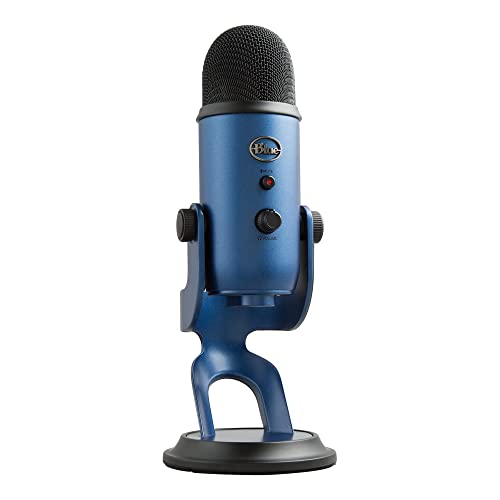
- Blue Yeti (Overall score: 8.39 points)
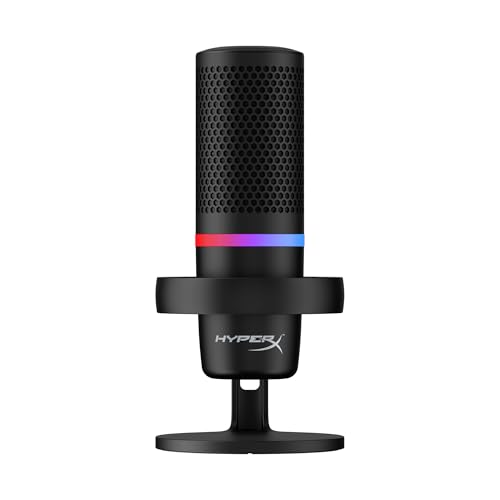
- HyperX DuoCast (Overall score: 8.38 points)
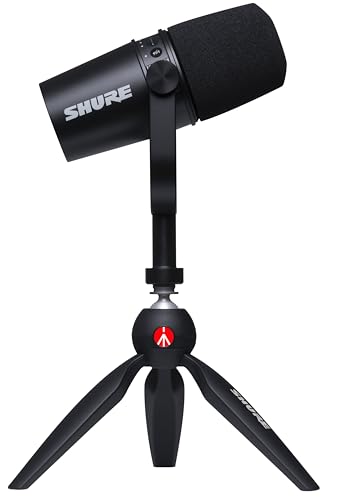
- Shure MV7 (Overall score: 8.33 points)
Which microphone types work best with PC?
The microphone types that work best with a PC are as follows:
- USB microphones: The best default for one-person calls, gaming, streaming, podcasting, and voice-over. They combine the capsule, preamp, converter, and Windows connection in one unit, but their software features and upgrade path depend on the manufacturer.
- XLR microphones: Best for music recording, several speakers, hardware mixers, and buyers who want to choose their own preamp or interface. The PC sees the audio interface rather than the microphone, so driver stability, input gain, phantom power, and channel count belong to the interface decision.
- Hybrid USB/XLR microphones: Useful when you want immediate plug-and-play operation but may add an interface or mixer later. Check which controls, headphone monitoring, DSP, or software features work in each mode because USB-only functions may disappear over XLR.
- Dynamic microphones: Strong for untreated rooms, close speech, loud keyboards, live vocals, and high sound levels. They commonly need closer placement and some passive models require more clean interface gain than an inexpensive PC input can provide.
- Condenser microphones: Strong for detailed voice, acoustic instruments, and studio work in a quiet room. Their sensitivity can expose fan noise, reflections, mouse clicks, and distant positioning, so a cardioid pattern and suitable placement are important.
- Wireless systems: Best when the speaker must move around a room, present away from the desk, or record mobile video that feeds the PC. Verify receiver connection, Windows audio support, latency, radio reliability, battery runtime, and whether one or several transmitters can be recorded separately.

Position a PC microphone close enough that your voice is much louder than the keyboard, fans, and room reflections. For desk speech, place a cardioid microphone about 8–20 cm from the mouth, aim its least-sensitive side toward the main noise source, and speak slightly across rather than directly into the capsule to control plosives. A boom arm usually gives more consistent placement than a short desk stand and prevents typing vibrations from travelling through the desk.
In Windows, select the microphone explicitly in both the system settings and the application, then set gain while speaking at the loudest realistic level. Leave headroom instead of pushing the meter to its limit, and compare automatic gain control, noise suppression, and echo cancellation on and off because call software can process the same microphone very differently from a DAW or OBS. A practical 24-bit/48 kHz mode is sufficient for most speech, streaming, podcasting, and music work.
Monitor through the microphone or audio interface when possible and make a short recording in the exact program you intend to use. Listen for keyboard transients, fan hum, room echo, clipping, and latency while game or call audio is also playing. Adjust distance and room treatment before relying on aggressive software cleanup; moving the microphone closer and reducing gain normally improves clarity more naturally than heavy noise reduction.
How important are USB, XLR, and software compatibility?
USB, XLR, and software compatibility are decisive because they determine what extra hardware is required, how reliably Windows sees the microphone, and which monitoring or routing features are available. A USB microphone should identify as an audio input without fragile setup, preferably at 24-bit/48 kHz or better, and its gain, mute, headphone monitoring, and sample-rate controls should remain usable in the intended application. Check whether optional software is needed only for effects or is also required for basic functions, and whether the manufacturer maintains current Windows drivers and firmware.
An XLR microphone has no direct Windows compatibility of its own: the audio interface, mixer, or USB preamp provides that bridge. Confirm that the interface supplies enough clean gain for a low-output dynamic microphone or 48 V phantom power for a compatible condenser, then check its Windows driver, buffer stability, input count, direct-monitoring path, and DAW support. Hybrid USB/XLR microphones are convenient, but compare their two modes carefully; onboard DSP, loopback, mute indication, headphone mix, or high-resolution conversion may be available over USB and bypassed over XLR.
The chart below shows the connection types used by Windows-compatible microphones.
[pie-chart-03040444077636292396012283254330019878183290565466]
Are wired or wireless microphones better for PC?
Wired microphones are better for most PC users because they provide predictable power, stable bandwidth, low latency, and fewer points of failure. Wireless microphones are better when the speaker must move away from the desk or when cable freedom is central to the recording.
A USB or XLR cable is easy to troubleshoot and does not need charging or radio pairing. For gaming, calls, streaming, podcasting, and music at a fixed workstation, the practical disadvantages are mostly cable routing and desk clutter. A good boom arm and a sensibly routed cable usually solve both while keeping the capsule at a consistent distance.
Wireless becomes worthwhile for presentations, standing instruction, room-scale demonstrations, fitness content, or recording several people who cannot remain beside the PC. Judge the complete system rather than the microphone alone: receiver connection, Windows recognition, operating band, usable range, battery runtime, charging method, latency, dropout behavior, encryption, and whether separate transmitters appear on separate channels all affect the result. Bluetooth is rarely the first choice for production speech because its microphone profiles can reduce bandwidth and add latency.
If movement is only occasional, a longer wired cable or a compact audio interface placed nearer the speaker can be simpler and cheaper. Choose wireless when mobility changes the recording, not merely to remove one visible cable, and keep a charging routine or wired backup for sessions that cannot be repeated.
How much do good microphones for PC cost?
Good microphones for PC usually cost about £30-£220, with basic USB choices starting near £20-£40 and specialist studio chains extending well above £430. The useful price depends on whether the purchase is a self-contained USB microphone or only one part of an XLR system.
Below roughly £50, prioritize clear speech, dependable Windows recognition, solid mounting, and quiet enough electronics over lighting or elaborate software. Around £70-£170, many USB models add 24-bit audio, direct monitoring, hardware gain and mute, sturdier stands or yokes, useful software routing, and better accessories. This is the strongest range for most gaming, calls, streaming, and solo podcasting setups.
Above £170, look for a specific return: hybrid USB/XLR output, broadcast mechanics, multiple patterns, strong onboard DSP, professional wireless operation, or studio-level capsule performance. For XLR, calculate the whole chain—microphone, interface or preamp, stand, shock mount, pop protection, cable, and headphones—because a £130 microphone can easily become a £300-£400 working setup.
The chart below shows the price distribution of Windows-compatible microphones.
[vertical-chart-16421444376050181788172695781817031714000872301571]
What should you consider while choosing a microphone for PC?
The main points to consider while choosing a microphone for PC are as follows:
- Use, room, and placement: Define whether the microphone is for calls, gaming, streaming, podcasting, voice-over, vocals, or instruments. A close dynamic often controls an untreated room better, while a cardioid condenser can capture more detail in a quiet space; aim the rejection area toward the main noise source.
- USB, XLR, or hybrid path: USB gives one-cable simplicity, while XLR needs an interface or mixer but supports several inputs and replaceable components. For XLR condensers confirm 48 V phantom power, and for low-output dynamics verify enough clean preamp gain; hybrid models may reserve DSP, mute, or monitoring features for USB mode.
- Windows and application support: Check the supported Windows version, driver or class-compliant behaviour, firmware tools, and operation after sleep or reboot. Confirm input selection, permissions, and channel mode in Teams, Zoom, Discord, OBS, and the intended recording software.
- Recording format and latency: Twenty-four-bit/48 kHz is a strong practical target for speech, streaming, podcasting, and music. Stable drivers, sensible buffers, and reliable direct monitoring matter more than a 192 kHz headline that the PC cannot run consistently.
- Gain, mute, and monitoring: Hardware gain should reach a clean level without excessive hiss, and mute should be quiet and visually obvious. A zero-latency headphone output with volume and mic/playback mix makes call, game, and recording levels easier to balance.
- Loopback and multi-app routing: Loopback is valuable when game sound, browser audio, callers, alerts, or music must join the microphone feed. Verify whether sources remain separate, which sample rates support the virtual channels, and how those channels appear in the target software.
- Mounting and noise control: Match the stand or boom arm to the microphone's weight, thread, and address direction. Close, repeatable placement with suitable pop protection, shock isolation, and cable routing usually improves speech more than aggressive software noise removal.