
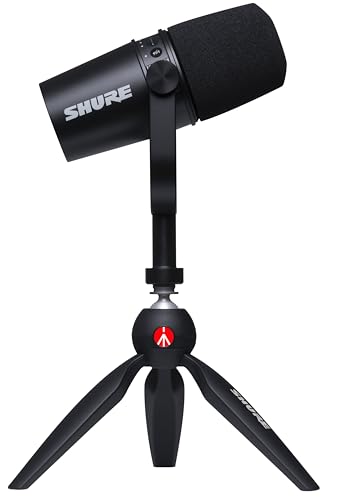
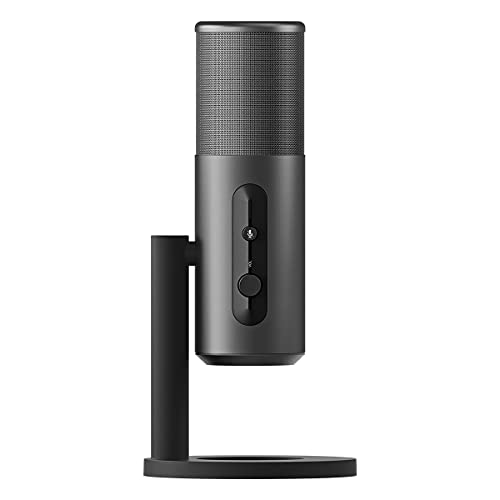
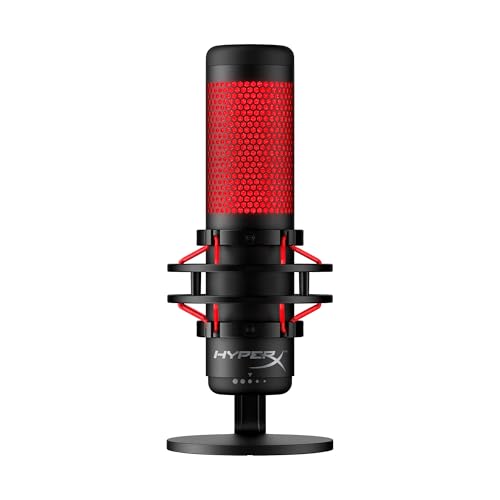
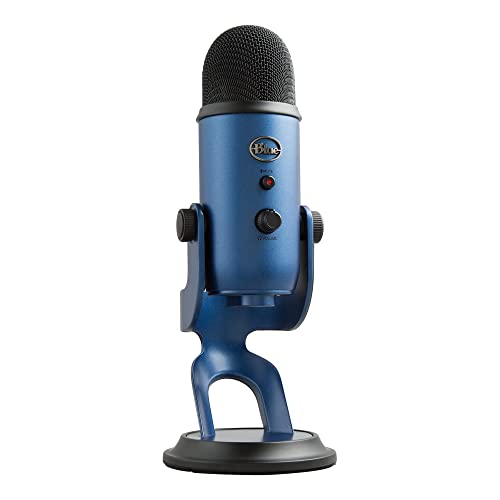
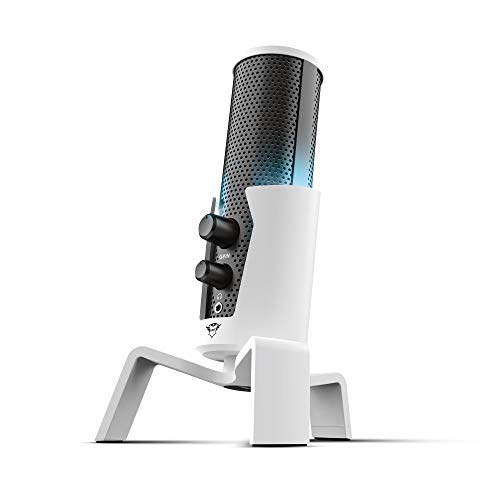
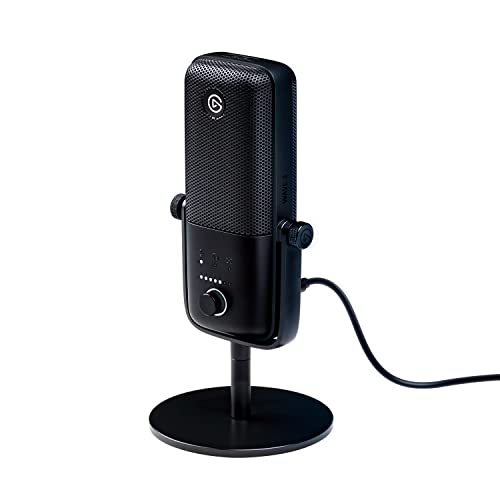
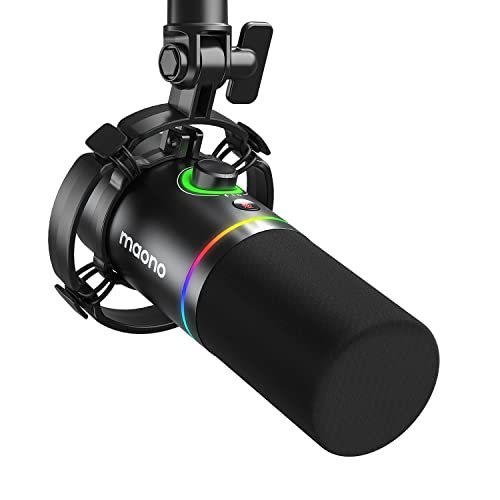
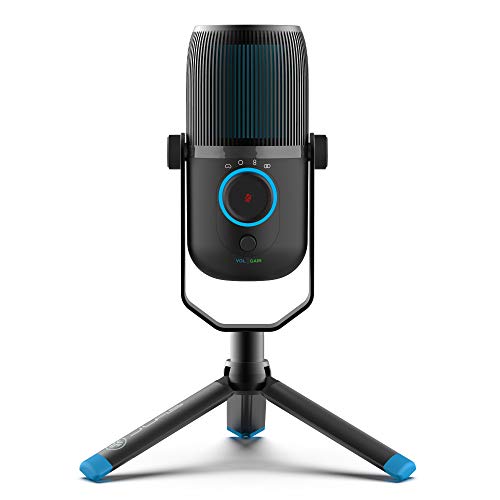
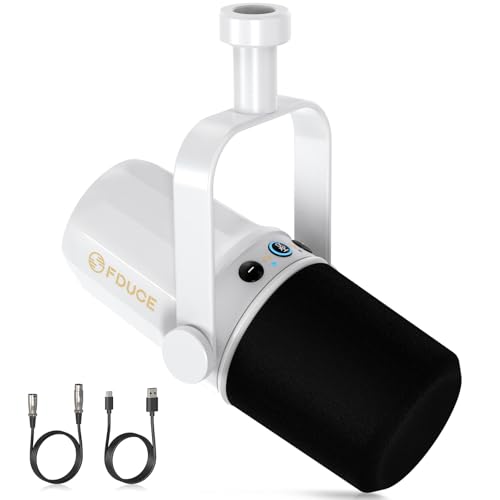
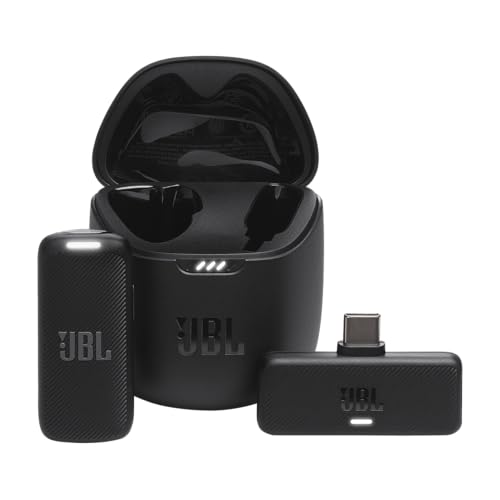
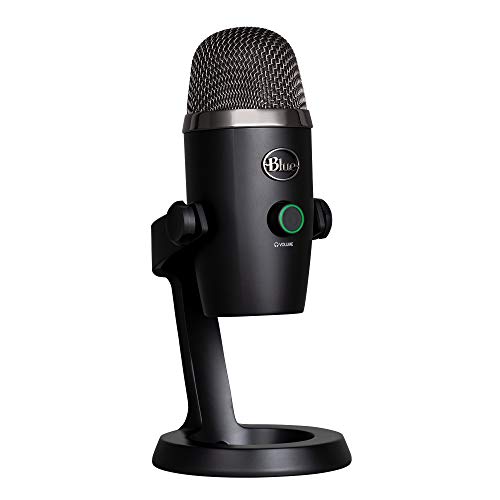
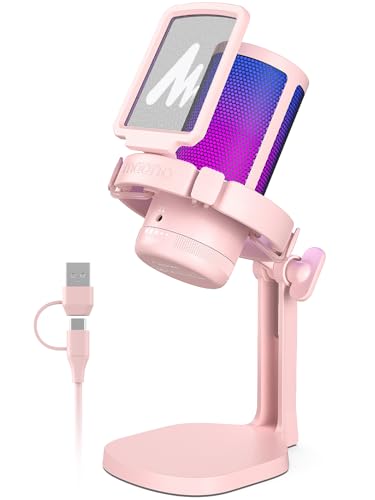
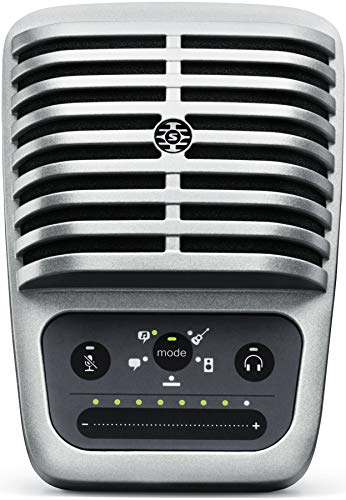
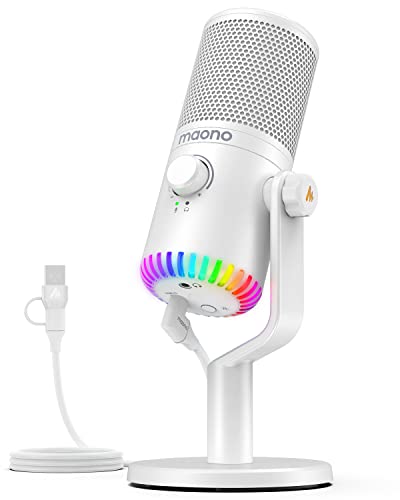
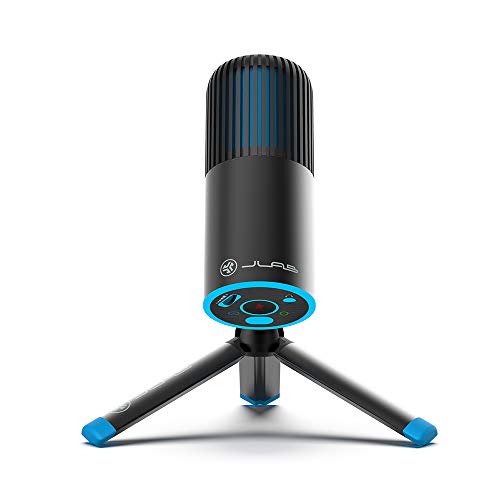
What are the best microphones for PS4?
The PS4-compatible microphones with the highest overall scores are as follows:
- Blue Yeti (Overall score: 8.39 points)
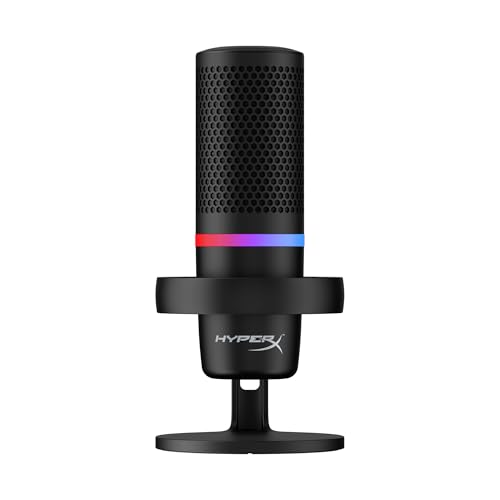
- HyperX DuoCast (Overall score: 8.38 points)
- Shure MV7 (Overall score: 8.33 points)
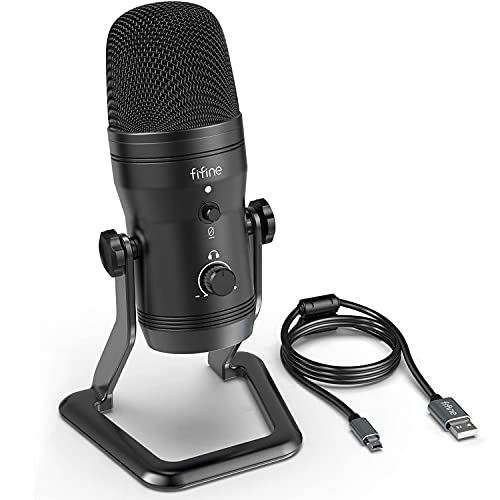
- FIFINE K690 (Overall score: 8.31 points)
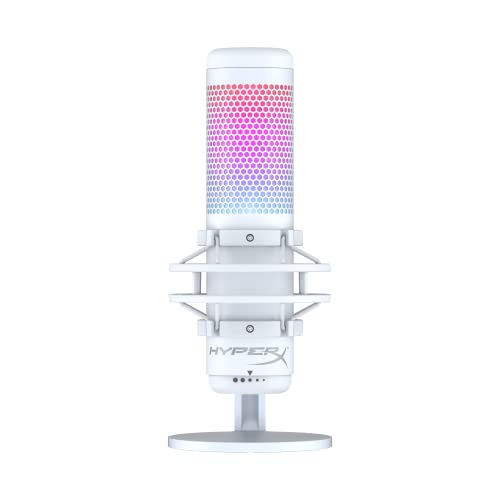
- HyperX QuadCast (Overall score: 8.31 points)
Which microphone types work best with PS4?
The microphone types that work best with PS4 are as follows:
- USB desktop microphones: Best for a fixed console desk, streaming setup, party chat, karaoke, or speech recorded near the screen. Choose a model explicitly confirmed for PS4 because software-dependent PC features, virtual channels, and proprietary drivers may not operate on the console.
- 3.5 mm headset and boom microphones: Best for normal gaming chat because they connect to the DualShock 4 headset socket and move with the player. A four-pole CTIA-style TRRS plug is normally required for combined headphones and microphone; separate PC headphone and mic plugs need a compatible combiner.
- USB/XLR hybrid microphones: Useful when the same microphone will serve the PS4 over USB and a computer or studio interface over XLR. Check each mode separately, as onboard mute, headphone monitoring, lighting, DSP, or mix controls may behave differently without the PC application.
- XLR microphones through an interface or mixer: Best for advanced streams, music, several microphones, or hardware sound control. The XLR microphone cannot plug directly into PS4, so the interface or mixer must present a compatible USB audio device and supply the required gain or 48 V phantom power.
- Wireless microphones with a receiver: Useful when the speaker must move away from the console or controller. The receiver needs a PS4-supported USB audio connection or a compatible 3.5 mm path; ordinary Bluetooth support on a phone or PC does not prove direct PS4 compatibility.
Connect a supported USB microphone to a PS4 USB port, or plug a compatible TRRS headset microphone into the DualShock 4 controller, then select it under Settings > Devices > Audio Devices. The Input Device entry should show the microphone or USB audio device rather than the controller's previous input.
Open Adjust Microphone Level and speak at the real playing distance. Set the level so normal speech remains comfortably inside the good range and excited speech does not strike the maximum; moving the microphone closer is usually cleaner than raising gain enough to capture the television, room, and controller noise. Position a cardioid desktop microphone with its active side toward the mouth, since some models are side-address and others are end-address.
Choose the Output Device separately. A headset connected to the controller may handle both input and output, while a USB microphone can be input-only or can expose its own headphone socket. Under Output to Headphones, Chat Audio keeps game sound on the television or main system and sends chat to the headset; All Audio sends both through the selected headphone path when the hardware supports it.
Finally, test the microphone in the intended party, game, karaoke title, or streaming route. Check mute state, chat permissions, game-specific voice settings, and whether reconnecting the controller changes the selected device. If the PS4 does not list the microphone, try a direct console port without an unpowered hub and confirm explicit PS4 support; installing a Windows driver on another computer cannot add a missing console audio profile.
Which microphone connections work with PS4?
The microphone connection paths that work with PS4 are as follows:
- Direct USB audio: A PS4-compatible USB microphone or USB receiver can connect to a console USB port and appear under Audio Devices. Basic audio and hardware controls may work even when PC companion software, RGB settings, DSP profiles, or virtual channels do not.
- DualShock 4 headset socket: A combined four-pole 3.5 mm TRRS headset plug can carry microphone input and headphone output through the controller. A microphone with a separate three-pole PC mic plug normally needs the correct CTIA combiner rather than a simple headphone splitter.
- USB audio interface or mixer: An XLR microphone can reach PS4 through an interface or mixer that the console recognizes as USB audio. Confirm the exact interface model, its power needs, output routing, gain range, and phantom-power support before building the system around it.
- Wireless receiver over USB: A dedicated receiver can work when it presents a supported USB audio device. Check whether it outputs microphone input only or also takes over headphones, and verify latency, battery runtime, pairing recovery, and channel behavior without desktop software.
- Wireless receiver through 3.5 mm: Some receivers can feed a compatible controller or intermediate audio device through analog output. Match TRS/TRRS wiring and mic-versus-line level; an adapter that changes plug shape does not automatically correct signal level.
- Capture-card or streaming mixer route: Advanced streamers can mix the microphone with console audio outside the PS4 and send the result to a computer or broadcast chain. This does not necessarily make the microphone available for native PS4 party chat, so plan chat and stream routing as separate requirements.
- Unsupported direct paths: XLR cannot connect without an interface, and generic Bluetooth microphone or headset compatibility should not be assumed. Manufacturer support for PC, phone, PS5, or Bluetooth audio is not proof of PS4 input support.
Are USB or 3.5 mm headset microphones better for PS4?
A 3.5 mm headset microphone is better for straightforward PS4 game and party chat, while a USB microphone is better for a fixed desk, streaming, karaoke, or a more controlled voice setup. The controller route moves with the player and keeps headphones and microphone on one cable; USB gives more freedom in capsule choice, placement, and hardware controls.
The 3.5 mm option works best with a CTIA-style TRRS headset or boom microphone designed for the DualShock 4 socket. It uses no console USB port, but offers fewer controls and relies on the controller's analog audio path; separate PC microphone and headphone plugs need the correct headset combiner. A supported USB desktop microphone can sit closer on a stand or boom arm and may add gain, mute, selectable patterns, and headphone monitoring, although PC-only software, loopback, DSP profiles, and lighting control may be unavailable on PS4.
Plan audio output as carefully as input. A controller headset usually makes chat routing simple, while a USB microphone may become both the input and headphone-output device or may serve only as the input. Television speakers can feed game or chat sound back into an open desktop microphone, so headphones are the safer choice. Choose 3.5 mm for inexpensive controller-centered chat; choose USB when fixed placement, standalone controls, streaming presentation, karaoke, or shared PS4-and-computer use justifies the console cable.
The chart below shows how commonly PS4-compatible microphones include a 3.5 mm audio jack.
[pie-chart-13662282581451679758068533528328417899383846664742]
How much do good microphones for PS4 cost?
Good microphones for PS4 usually cost about £30-£130, with basic chat and entry USB models around £20-£40 and premium USB or hybrid microphones reaching roughly £150-£230. For ordinary party chat, a modest headset microphone can be the sensible purchase; the higher tiers are easier to justify for streaming, karaoke, content creation, music, or use with both PS4 and a computer.
Below £40, prioritize confirmed PS4 detection, clear speech, an effective mute, and a cable or stand that suits the playing position. Around £50-£100, stronger USB models often add sturdier mounting, headphone monitoring, gain control, better isolation, or more versatile capsules. Above £130, look for a specific advantage such as broadcast construction, hybrid USB/XLR output, a polished monitoring path, or a complete streaming role. Include a boom arm, headset, TRRS adapter, interface, powered hub, or mixer in the real system price rather than comparing the microphone alone.
The chart below shows the price distribution of PS4-compatible microphones.
[vertical-chart-05839171196491578280091473899380868634711467911751]
What should you consider while choosing a microphone for PS4?
The main points to consider while choosing a microphone for PS4 are as follows:
- Explicit PS4 support: Confirm that the exact microphone, receiver, interface, or mixer works as a PS4 input device. PC, phone, PS5, a USB connector, or generic class-compliant support does not guarantee that PS4 will list it under Audio Devices.
- Use and connection path: Decide whether the microphone is for game chat, streaming, karaoke, music, or recording through a computer. USB keeps a desktop microphone near the console, while 3.5 mm TRRS follows the DualShock 4 and may need a combiner for separate headphone and microphone plugs.
- Input, output, and monitoring: Plan where headphones, game sound, chat, and microphone monitoring should go. Verify Input Device, Output Device, and Chat Audio or All Audio, especially when a USB microphone has its own headphone socket; headphones also prevent television sound from feeding back into an open mic.
- Console-independent controls: Prefer hardware gain, mute, headphone volume, and mix controls that work without a Windows application. Software-only DSP, loopback, lighting profiles, and virtual channels may be unavailable even when basic PS4 audio works.
- Pickup and placement: Cardioid is the safest pattern for one player and should sit close with its rejection area toward the television or room. A headset boom or well-positioned arm with pop and shock control reduces controller handling, desk vibration, fan noise, and speaker pickup.
- XLR and wireless requirements: XLR needs a PS4-compatible USB interface or mixer with enough gain and any required 48 V phantom power. Wireless needs a supported USB or analogue receiver; check latency, battery life, range, pairing recovery, and do not rely on generic Bluetooth pairing.
- Power and USB ports: Confirm that PS4 can power the microphone, receiver, hub, or interface reliably. A direct port is simplest; multi-device streaming setups may need a powered hub, but the hub and connected audio device must both be verified for PS4.