
Which microphones are confirmed compatible with Xbox?
The following microphones are reported as compatible with Xbox, but the exact console generation and connection path should still be verified before purchase.
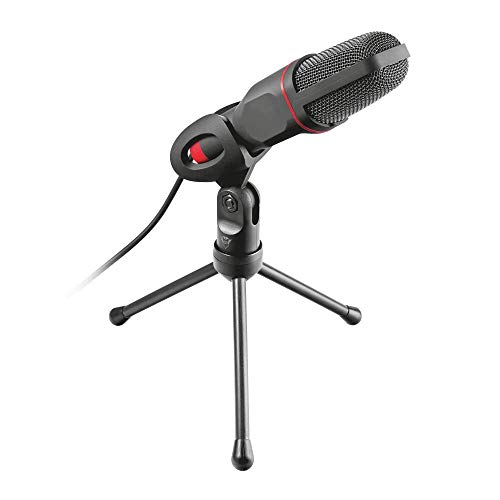
- Trust Mico: A compact omnidirectional condenser supplied with a 3.5 mm plug, USB adapter, 1.8 m cable, and small desktop tripod. It is inexpensive and portable, but it has no onboard mute or volume control and its broad pickup can capture controller, speaker, and room noise.
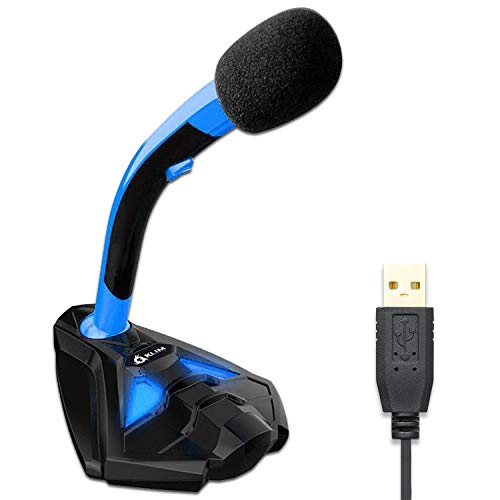
- KLIM Voice: A USB desktop condenser with an integrated mute button, volume dial, pop filter, and omnidirectional pickup. Because generic USB microphone support on Xbox is limited, confirm that the seller or manufacturer means direct operation on your Xbox model rather than use through a computer, adapter, or external stream.
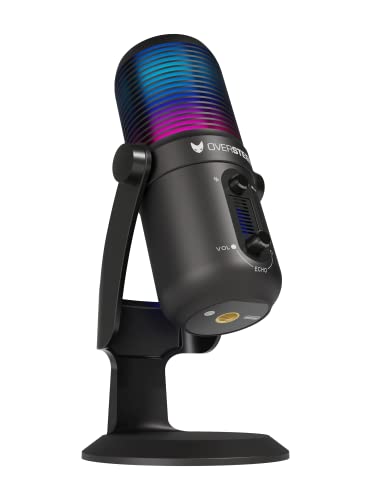
- Oversteel Elinvar: A USB condenser with cardioid and omnidirectional modes, 16-bit/48 kHz audio, a desk stand, boom arm, and pop filter. Its package suits a fixed gaming or streaming desk, but its documented Xbox connection and the availability of controls without PC software should be confirmed for the intended setup.
Which microphone types work best with Xbox?
The microphone types that work best with Xbox are as follows:
- CTIA 3.5 mm headset microphones: The safest choice for native party and game chat on controllers with a headset socket. The four-pole plug carries headphones and microphone together; older Xbox One controllers without the socket need a compatible headset adapter.
- Detachable headset boom microphones: Useful when you already own compatible headphones and want a replaceable mic. Confirm the headset-side connector as well as the CTIA controller plug, because proprietary ear-cup sockets and wiring differ.
- Xbox-licensed USB or wireless headsets: Suitable when the manufacturer explicitly supports the intended Xbox One or Xbox Series console. These products use approved Xbox connection paths rather than relying on the generic USB microphone behavior found on PCs.
- Standalone analog microphones through a headset adapter: A small lavalier or desktop mic can work when its signal is adapted correctly to the controller's CTIA TRRS input and a headphone load or combined path is provided where required. Plug shape alone does not guarantee the correct contacts or mic level.
- Studio microphones through a supported mixer or interface: Best for advanced broadcasts, music, or multi-source setups. The mixer or interface must handle Xbox chat or streaming through a documented route; an XLR microphone cannot connect directly to the console.
- External streaming microphones: A microphone connected to a PC can narrate a capture-card stream even if Xbox itself never sees that microphone. This solves broadcast commentary but does not automatically provide native Xbox party or in-game chat.
How do you connect an external microphone to Xbox?
Connect an external microphone to Xbox through the controller's CTIA TRRS headset input, a licensed USB or Xbox Wireless accessory, or a separate broadcast path. For normal party chat, plug a CTIA headset or boom mic into the controller's 3.5 mm socket; older controllers may need an Xbox headset adapter, and separate headphone and microphone plugs require a CTIA combiner rather than a stereo splitter.
USB and wireless microphones must explicitly support the relevant Xbox console and connection mode. Follow the manufacturer's pairing or receiver instructions, because a standard USB audio device may receive power without being recognized for chat; a supported mixer can also provide the required bridge for an XLR microphone.
In Xbox audio and party settings, assign the microphone to the signed-in controller, confirm that it is unmuted, and adjust headset volume, chat balance, and mic monitoring where available. Test in a party, then check the game's own voice-chat, channel, privacy, and cross-network settings.
A capture-card stream is different: connect the microphone to the streaming PC or mixer and select it in the broadcast software while game audio arrives through the capture device. This records narration without making that microphone a native Xbox chat input, so party chat may still need a controller headset, chat-link cable, or supported mixer route.
Why do some USB microphones not work with Xbox?
Many USB microphones do not work with Xbox because the console does not provide the broad generic USB Audio Class microphone support expected from Windows or macOS. A microphone can receive power and illuminate when plugged into Xbox yet still never appear as a chat input, because electrical USB connection and supported Xbox audio communication are different requirements.
Xbox accessories commonly need an approved Xbox protocol, licensed receiver, supported mixer, or controller-based audio path. The console also does not install a desktop driver or companion application, so a microphone that depends on proprietary software for device enumeration, routing, firmware mode, gain, or virtual channels can lose much of its function. Class-compliant on PC or PlayStation support is not proof of Xbox support.
The same caution applies to USB audio interfaces. Even if an interface powers an XLR microphone correctly and works on a computer without a driver, Xbox may not accept it as a native party-chat device. Exact model confirmation matters, and a mixer's USB port may be intended for recording to a PC rather than communicating with a console.
There are workable exceptions, but they are device-specific. An Xbox-licensed headset or receiver, a documented console mixer, or a manufacturer-supported USB microphone mode can establish the required path. External streaming also bypasses native USB microphone support by connecting the microphone to a PC, though that does not automatically feed Xbox party chat.
Are USB or 3.5 mm headset microphones better for Xbox?
A 3.5 mm CTIA headset microphone is better for most Xbox players because it uses the controller's established chat path, moves with the player, and combines microphone and headphone audio without occupying a console USB port. It is the practical choice for parties, multiplayer chat, and a sofa setup. Check whether the controller has a headset socket; older Xbox One controllers may require the official-style headset adapter, and separate PC mic/headphone plugs need the correct combiner.
A USB microphone is better only when its exact Xbox mode is documented or when it belongs to an external streaming or licensed mixer setup. A compatible USB desktop model can offer closer placement, a larger capsule, mute, gain, monitoring, and a more polished on-camera setup, but generic USB models often receive power without carrying Xbox chat. Choose USB for a verified fixed production chain; choose 3.5 mm for dependable controller-centered communication.
How much do good microphones for Xbox cost?
A good microphone path for Xbox can cost about £20-£90 for straightforward controller chat, while licensed wireless, mixer-based, or streaming systems commonly raise the complete setup to roughly £100-£300 or more. The key expense is often not the capsule but the hardware that establishes a supported Xbox connection.
Around £20-£40, expect a basic CTIA headset microphone, detachable boom mic, small analog desktop model, or an inexpensive model reported to support Xbox. Confirm whether the package includes headphones, a TRRS combiner, or the adapter needed by an older controller; missing connection hardware can erase the apparent saving.
Above £90, pay for a clear benefit such as an Xbox-licensed wireless headset, a documented chat mixer, better monitoring and controls, or a capture-card broadcast chain. A studio microphone can also require an interface, stand, cable, pop filter, headphones, and separate party-chat route, so calculate the complete system before comparing it with a simple controller headset.
What should you consider while choosing a microphone for Xbox?
The main points to consider while choosing a microphone for Xbox are as follows:
- Exact Xbox support: Identify the console and controller revision, then require a documented controller TRRS, Xbox Wireless, licensed USB receiver, or named mixer route. Generic USB, Bluetooth, PC, or PlayStation support does not prove Xbox chat compatibility, and a powered light does not prove the console recognizes the microphone.
- Native chat or external stream: Decide whether Xbox itself must receive the microphone for party and game chat or whether a PC needs it only for broadcast narration. A microphone connected to a capture-card PC does not automatically enter native Xbox chat.
- Controller wiring: Current controllers usually use a combined CTIA TRRS headset socket, while some early Xbox One controllers need a headset adapter. Separate headphone and mic plugs require the correct combiner, and a standalone TRS microphone may also need level matching rather than a plug-shape adapter alone.
- Audio routing and monitoring: Plan headphones, game audio, party chat, microphone monitoring, and stream audio as one system. Check chat-mixer behaviour and whether friends' voices can enter a broadcast through the chosen route and permissions.
- Hardware controls: Prefer mute, gain, headphone volume, and mic-monitor controls that work without a PC utility. Their state should be easy to verify during play, because desktop drivers and virtual devices are normally unavailable on Xbox.
- Pickup and placement: A headset boom stays close as the player moves, while a cardioid desktop microphone needs a fixed stand near the mouth and away from television speakers. Omnidirectional desktop models capture more room, controller, and speaker noise.
- XLR or wireless hardware: XLR needs a documented mixer or interface with enough clean gain and any required phantom power. Wireless needs a licensed or documented receiver; check latency, charging, range, pairing recovery, and whether a wired fallback exists.