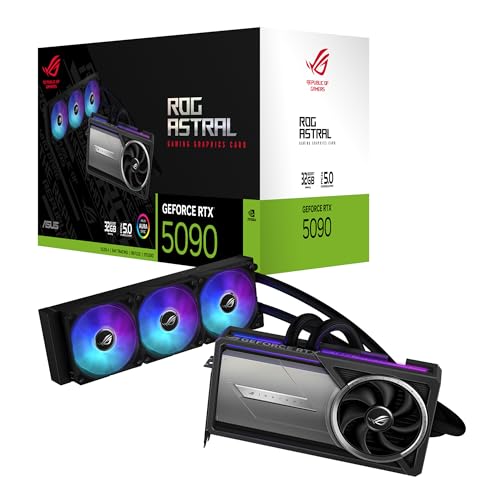
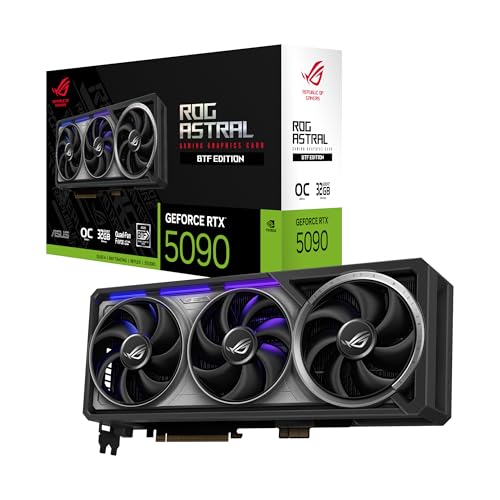
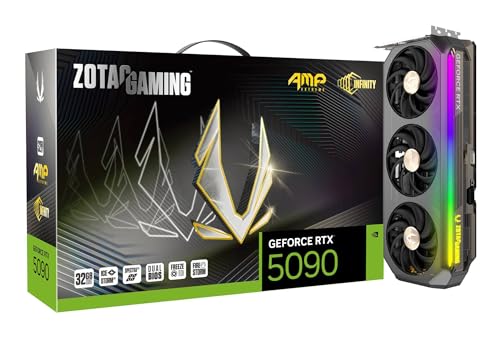
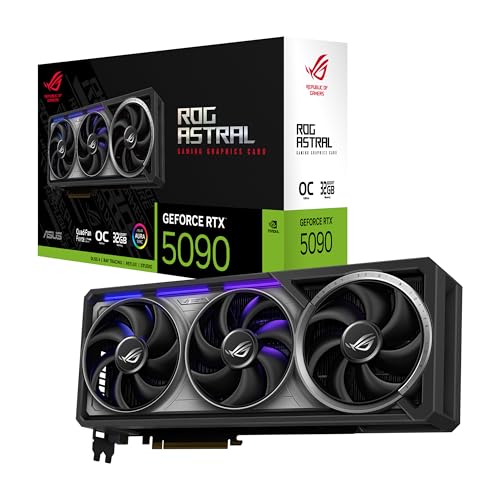
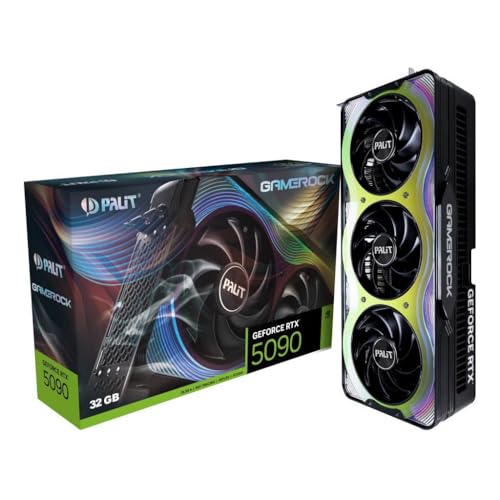
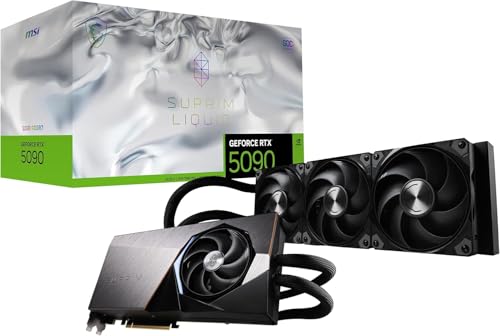
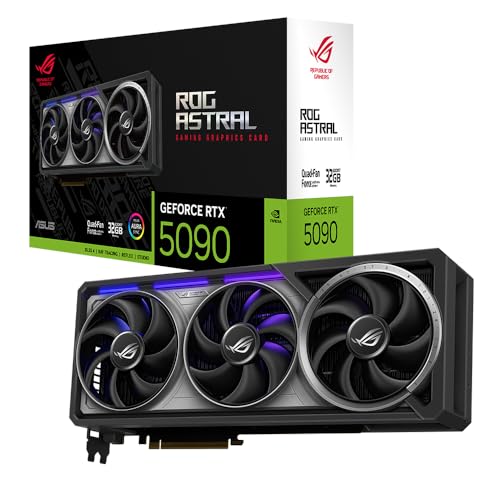
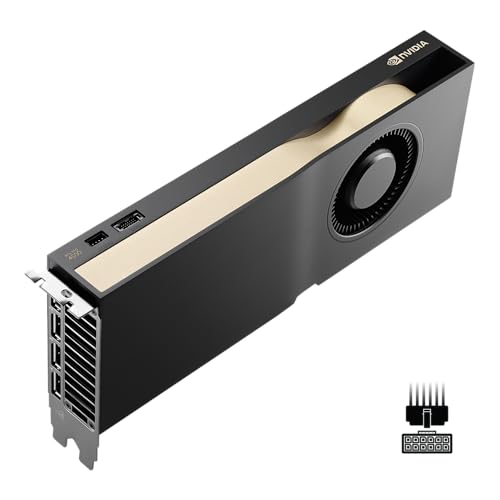
Which brands make the best graphics cards for video editing?
The graphics-card brands with the best average overall scores for video editing are as follows.
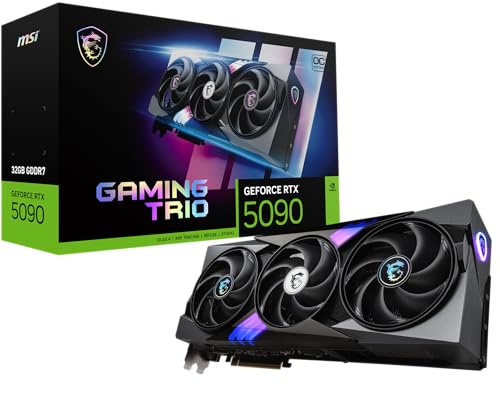
- MSI (Average overall score: 8.6)
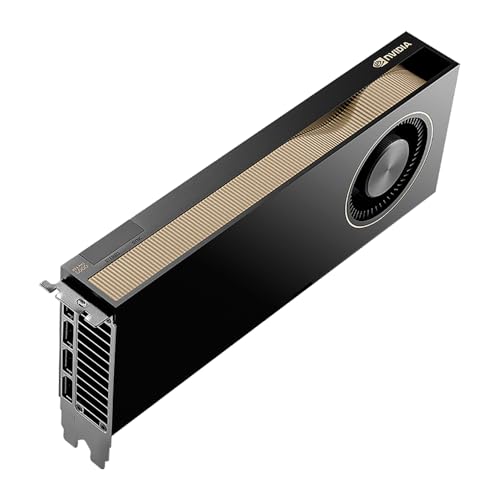
- NVIDIA (Average overall score: 8.2)
- ASUS (Average overall score: 7.7)
The chart below compares how the main video-editing graphics-card brands perform on average by overall score.
[horizontal-chart-08410900203472446169024401398115533076481999752578]
What makes a graphics card good for video editing?
The factors that make a graphics card good for video editing are as follows:
- VRAM capacity: A good editing card needs enough memory for the footage resolution, effect stack, and timeline complexity you actually use. Around 8 GB can still handle lighter work, but 12 GB or 16 GB is much more comfortable once 4K, RAW media, or heavier color and effects work become normal.
- Media engines: Strong H.264, H.265, and AV1 encode/decode support matters because playback, export speed, and proxy generation often depend on the hardware video engines as much as on shader power.
- Editor acceleration: A card becomes much more valuable when it behaves well in the software you actually use, whether that is Premiere Pro, DaVinci Resolve, or another GPU-accelerated editor. Good acceleration means smoother timelines, faster scrubbing, and fewer bottlenecks once effects start stacking.
- Compute headroom: GPU-heavy tasks such as color grading, denoising, AI tools, motion graphics, and scaling benefit from stronger compute power than simple cutting does. A card that feels excessive for light edits can make sense quickly once the workflow becomes more layered.
- Driver stability: Editing work benefits from predictable behavior more than from peak benchmark numbers alone. Stable drivers, clean plugin compatibility, and mature application support matter more in professional use than they do in simple gaming-only comparisons.
- Sustained cooling: Video-editing systems often sit under load for long export or render sessions. A good cooler helps the card maintain its clocks, keeps noise more controlled, and reduces the chance that the GPU becomes a thermal annoyance during longer work blocks.
How much VRAM do graphics cards for video editing need?
Graphics cards for video editing usually need at least 8 GB of VRAM, while 12 GB or 16 GB is a much safer target for heavier 4K work and more demanding effects. Many of the stronger editing-oriented options now sit in the 12-16 GB range, because modern creator workloads outgrow the bare minimum more quickly than light editing does.
VRAM matters because editing software uses it for frames, effects, textures, color pipelines, caching, and high-resolution playback acceleration. Once projects become more layered or resolution-heavy, running short on VRAM can hurt responsiveness long before the GPU's raw compute power is fully exhausted.
That makes VRAM one of the most practical editing filters. For lighter edits, 8 GB can still be workable, but if you regularly cut 4K footage, use GPU-heavy effects, or want more project headroom, 12 GB and especially 16 GB are usually the more comfortable long-term choices.
What software support matters most for video editing?
The software support that matters most for video editing is as follows:
- Editor acceleration path: Start with the editing software you actually use, because Premiere Pro, DaVinci Resolve, Blender-assisted workflows, and AI-heavy plug-ins do not all lean on the GPU in the same way. A card is only as useful as the application's ability to accelerate the part of the workflow that slows you down.
- Codec support: Strong H.264, H.265, and AV1 hardware encode/decode support matters because playback, exports, proxy creation, and timeline responsiveness often depend on the media engine much more than many buyers expect.
- High-bit-depth and format handling: 10-bit footage, 4:2:2 media, RAW workflows, log footage, and higher-end camera formats can stress software support differently from simple consumer clips. A card that handles your actual media cleanly is far more useful than one that only looks strong in generic benchmarks.
- Driver maturity: Stable drivers matter for editing because long sessions, render queues, and plugin-heavy projects punish instability more than short gaming tests do. Mature application support often saves more time than a small theoretical speed advantage.
- Plugin and AI-tool compatibility: Noise reduction, AI masking, upscaling, interpolation, and motion-graphics tools do not behave the same across vendors. Check how your editor's effects stack and third-party plugins really perform on the GPU family you are considering.
How much do the best graphics cards for video editing cost?
Graphics cards for video editing usually cost about £300-£2,200, with many practical creator-oriented choices sitting closer to £400-£1,000. The right budget depends less on chasing the most expensive GPU and more on how heavy your footage, effects, and export workload really are.
Around £300-£600, you can already find capable cards for lighter 1080p and more practical 4K editing, especially if the workflow is not overloaded with denoising, RAW media, or complex motion graphics. Around £700-£1,300, the market gets much stronger for heavier 4K work, better media engines, larger coolers, and more comfortable 12-16 GB VRAM tiers. Above that, the cards usually make the most sense for more demanding professional workloads, bigger timelines, or specialized creator needs rather than for everyday editing alone.
This chart visualizes graphics card prices for video editing.
[vertical-chart-00474087443486232394184297119121310977133898933904]
How good is export and playback acceleration on graphics cards for video editing?
Export and playback acceleration on graphics cards for video editing can be very strong when the software, codec, and media-engine support line up correctly. In real work, the biggest gains show up in smoother 4K timeline playback, less choppy scrubbing, faster hardware-assisted exports, and better responsiveness once effects and higher-resolution footage start stacking up.
The exact benefit still depends on the workflow. Some projects lean heavily on hardware encode and decode blocks, while others depend more on GPU compute for grading, denoising, scaling, motion graphics, or AI-assisted tools inside the editor.
That is why export and playback acceleration should be judged as a workflow feature, not just a spec-sheet claim. A card with the right codec support and stronger behavior in your actual editor can feel much faster in daily work than a theoretically stronger GPU that fits your software stack less well.
What should you consider while choosing a graphics card for video editing?
The main factors to consider while choosing a graphics card for video editing are as follows:
- Editing software first: Start with the editor and plugin stack you actually use, because Premiere Pro, DaVinci Resolve, After Effects-heavy workflows, Blender-assisted work, and AI tools do not all stress the GPU in the same way. The best card is the one that accelerates the part of the workflow that really slows you down.
- VRAM capacity: 8 GB can still be enough for lighter 1080p work, but 12 GB or 16 GB is a much safer target once 4K timelines, larger RAW files, heavier color work, or more complex motion graphics enter the workflow. Memory limits often show up before raw compute limits do.
- Codec and media engines: Check H.264, H.265, AV1, 10-bit decode, and the hardware video engines your workflow depends on. Smooth playback and fast exports often come from the right media support as much as from the GPU's raw rendering power.
- Compute tier: Some editing jobs mainly need smooth playback, while others lean much harder on denoising, grading, AI features, compositing, scaling, and effects. If your workflow is effects-heavy, the GPU tier matters more than it does in a simple cut-and-export pipeline.
- Cooling and sustained noise: Editing workloads often keep the GPU busy for long renders and repeated exports. A stronger cooler can mean quieter long sessions, steadier boost behavior, and fewer thermal annoyances than a cheaper card with a weaker board-partner design.
- System fit: Check PSU capacity, power connectors, case length, and slot thickness before buying. Many cards that make sense for heavier creator work are physically large and power-hungry enough that a casual fit assumption becomes an expensive mistake.
- Budget fit: The right editing GPU is not automatically the most expensive gaming flagship. Spend enough to match your footage, codec, and effects complexity, but stop once the extra money no longer changes the editing experience in a meaningful way.