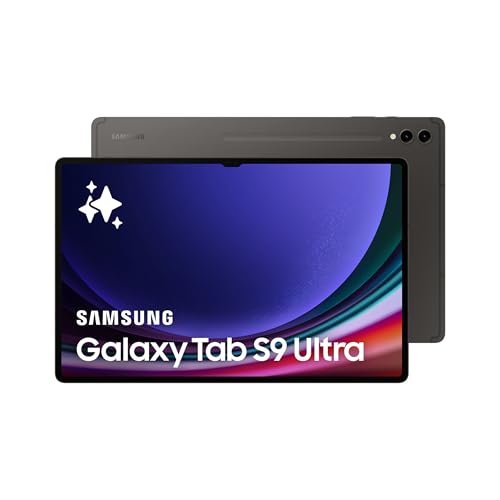
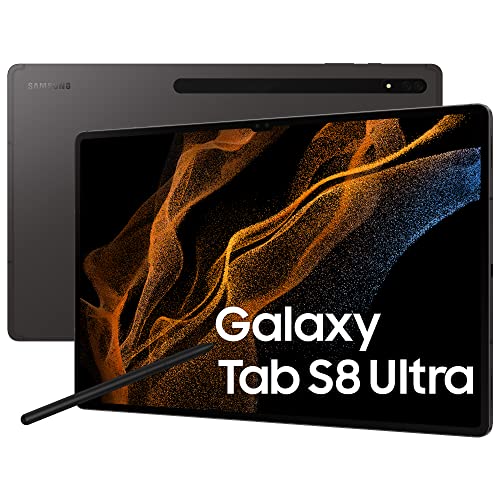
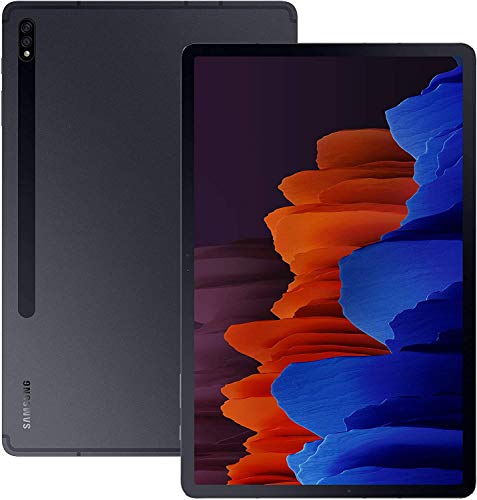
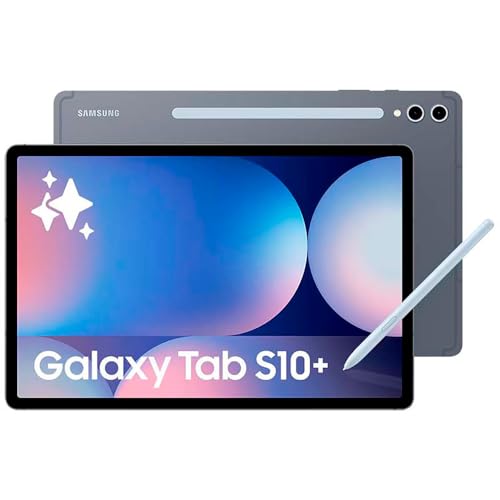
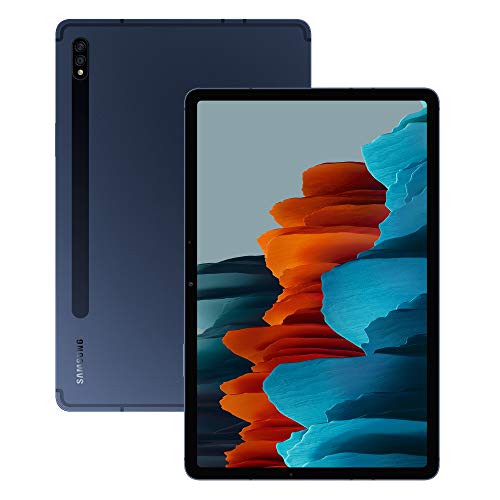
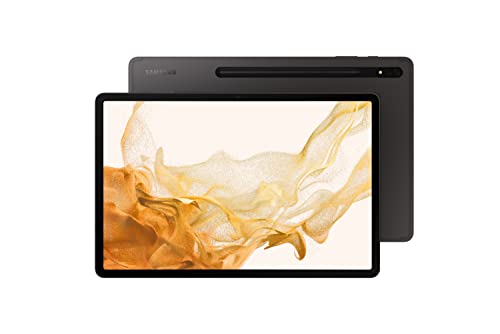
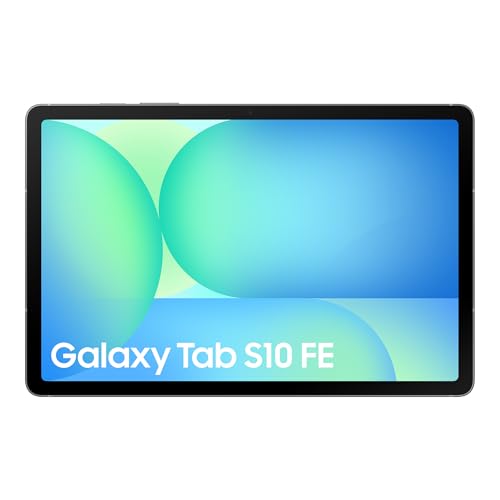
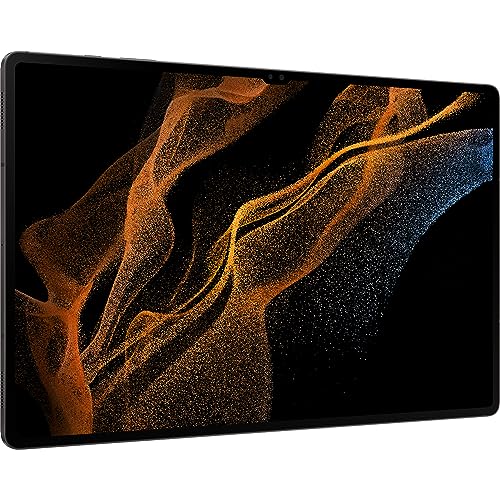
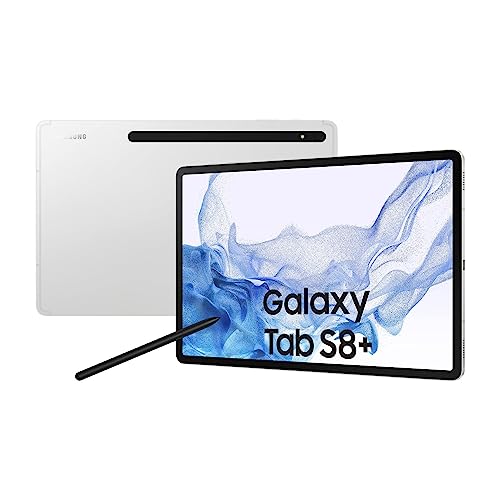
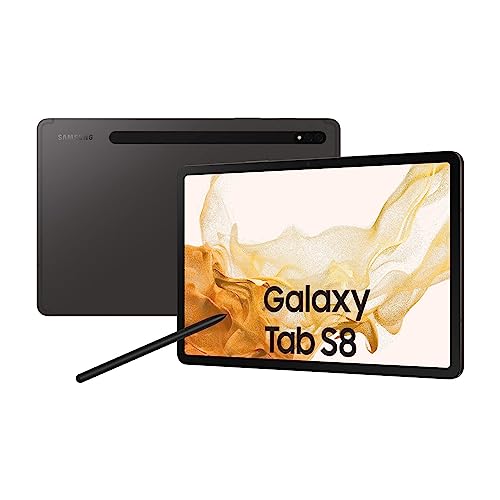
What is a tablet with a pen?
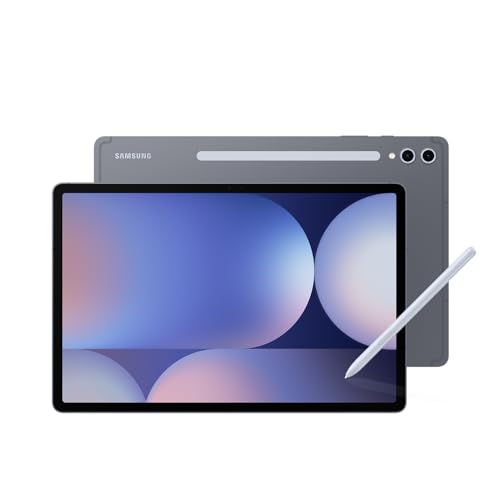
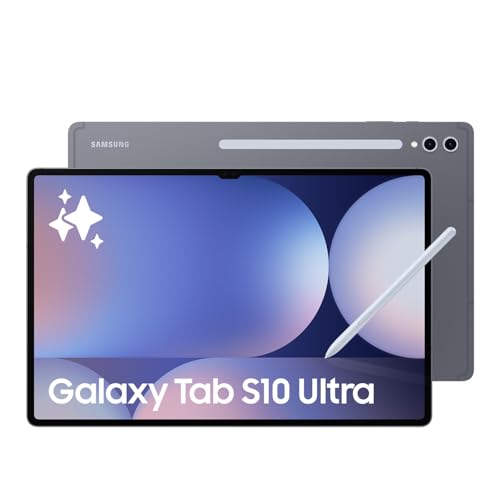
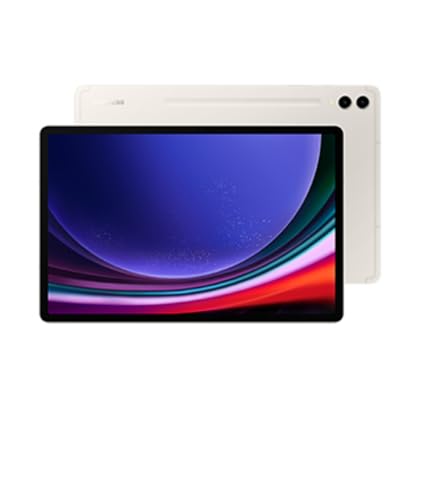
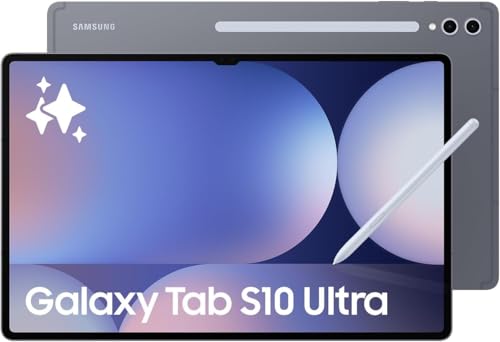
A tablet with a pen is a device that combines a touchscreen with a stylus designed for precise input.
The pen can be used to write, draw, sketch, or navigate the interface, giving more accuracy than fingers. Many models support pressure sensitivity, which means the pen detects different levels of pressure to create varied line thickness, making it suitable for digital art and note-taking.
Some tablets come with the pen included, while others require it as a separate purchase. The pens often have additional features such as shortcut buttons or tilt recognition.
What are the common uses for tablets with pens?
Tablets with pens have the following common uses:
- Digital drawing and design: Artists and designers use pens for sketching, illustration, and graphic design, as the pen gives precision and pressure sensitivity.
- Note-taking: Students and professionals use the pen to write directly on the screen, so notes look natural and can include diagrams or handwritten text.
- Document editing: Pens help to highlight, annotate, or sign PDFs and other files, which saves time compared to typing.
- Navigation and control: The pen works as a precise tool to move through menus, tap small icons, or select detailed parts of a screen.
- Education and teaching: Teachers use pens to explain concepts, draw diagrams, or write on digital whiteboards during lessons.
- Photo and video editing: Pens give finer control for cropping, retouching, or adjusting details that are harder to do with a finger.
What is the difference between an active pen and a passive pen?
The difference between an active pen and a passive pen is that an active pen uses electronic components and connects with the tablet, while a passive pen works as a simple stylus without electronics.
An active pen often has features such as pressure sensitivity, tilt detection, and shortcut buttons, which give more control and precision in tasks like drawing, note-taking, and editing. A passive pen only imitates a fingertip touch, so it cannot detect pressure levels or advanced movements.
Active pens usually need a battery or a rechargeable system to power their sensors, and they must be paired with compatible tablets that support the technology. This gives them higher accuracy and better performance for creative or professional use. Passive pens do not need power, and they can work with any touchscreen device that responds to touch input, but they lack advanced functions and precision.
Which brands make the best tablets with pen?
The best tablet brands with pen support are as follows.
- Samsung (Overall score: 8.9 points)
- Honor (Overall score: 8.3 points)
- Huawei (Overall score: 7.4 points)
The chart below ranks tablet brands with pen support based on their overall scores.
[horizontal-chart-16434975425506702677128019936290034107441931028714]
How much do tablets with pen cost?
Tablets with a pen cost from about £130 up to more than £850 depending on brand, size, and specifications.
- Entry-level models usually include a basic pen and have prices in the 150–£260 range. These devices focus on standard drawing and note-taking features, so they suit students and casual users.
- Mid-range tablets with a pen cost between £260 and £600. They have faster processors, better displays, and higher pen sensitivity, which makes them suitable for more advanced sketching or professional note use.
- High-end tablets with a pen reach 800–£1,100 or more. These include flagship models with premium screens, very precise pens, and advanced functions. They target designers, artists, and professionals that need the best performance.
What should you consider when choosing the best tablet with pen?
When choosing the best tablet with pen, consider the following factors.
- Pen performance and latency: Check stylus latency, pressure levels, tilt support, and palm rejection for handwriting and sketch accuracy. Apple Pencil 2 reports ~9 ms latency on iPad Pro, Surface Slim Pen targets ~21 ms, and Samsung S Pen shows near-instant ink in Samsung Notes in tests. Look for low-latency panels at 120 Hz and good in-app optimization (Apple Notes, Samsung Notes, OneNote).
- Display and touch stack: Look at refresh rate, laminated display, color accuracy, and oleophobic coating because these affect pen tracking, parallax, and glide. iPad Pro and Galaxy Tab S series pair 120 Hz with laminated glass for tight ink-to-tip feel, and Surface Pro’s PixelSense improves pen precision with Slim Pen 2 haptics. Match panel specs to use cases like art or note-taking.
- Software and ecosystem: Evaluate native note/draw apps, handwriting OCR, file sync, and pencil-specific features. iPadOS has Scribble and deep Apple Pencil integration in Notes, Samsung pairs S Pen with Samsung Notes and Air actions, and Windows supports OneNote and Adobe with Surface Pen button/eraser workflows. App optimization drives real latency and tool behavior.
- Pen charging and ergonomics: Compare magnetic attach, induction charging, tip materials, side buttons, and eraser design. Apple Pencil 2 magnetically attaches and charges with double-tap tool switch, Surface Pen uses tail eraser and side buttons, and S Pen stows on the tablet with soft tips that increase control. Comfort, grip, and tip feel matter in long sessions.
- Compatibility and standards: Confirm first‑party vs USI/MPP support, tilt and pressure compatibility, and cross‑device pairing. Universal styluses can skip advanced features like palm rejection or pressure on some tablets, so match pen protocol to the brand series like Apple Pencil to iPad, S Pen to Galaxy Tab, or Surface Pen to Surface line. Mixed setups can add latency or lose features.