What types of tablets can be used for drawing?
Tablets that can be used for drawing are as follows:
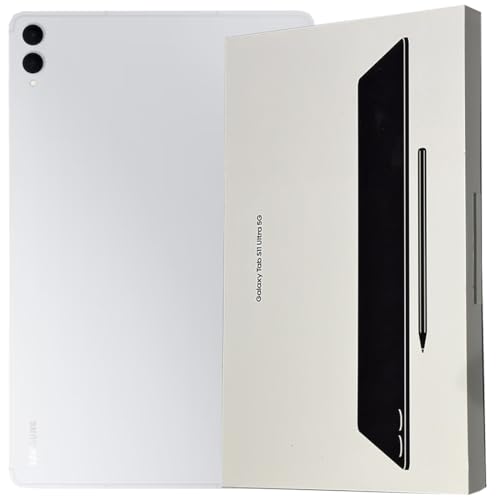
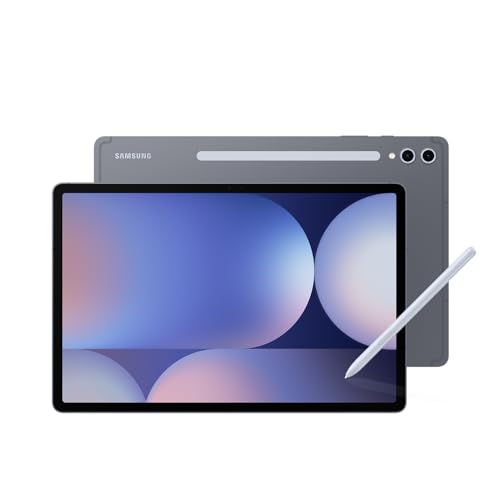
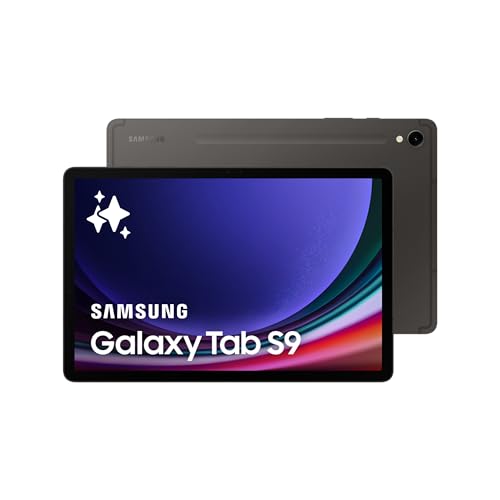
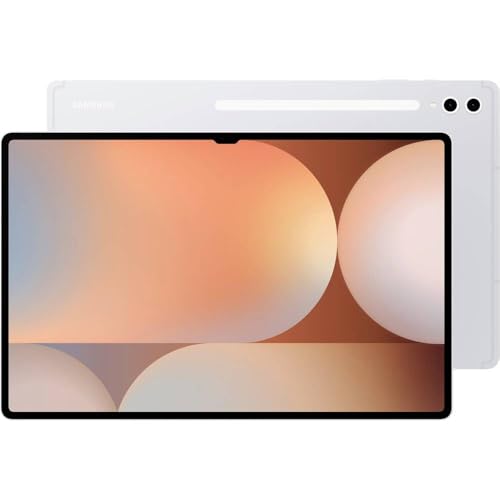
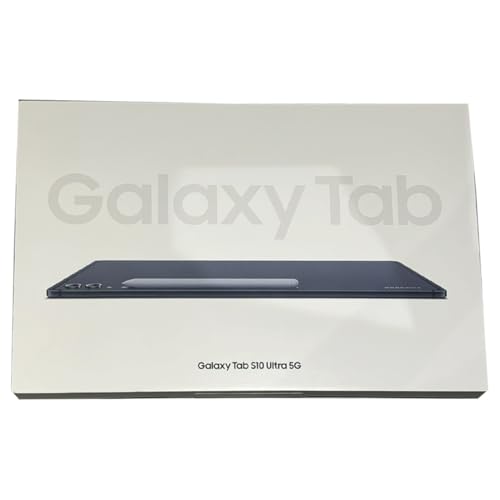
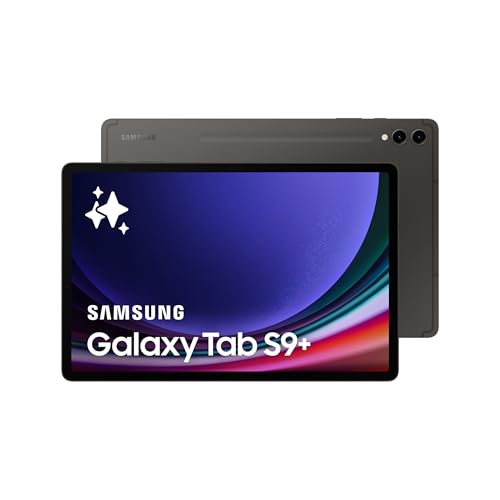
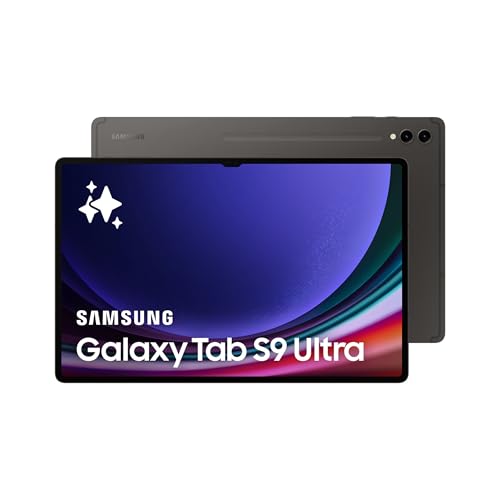
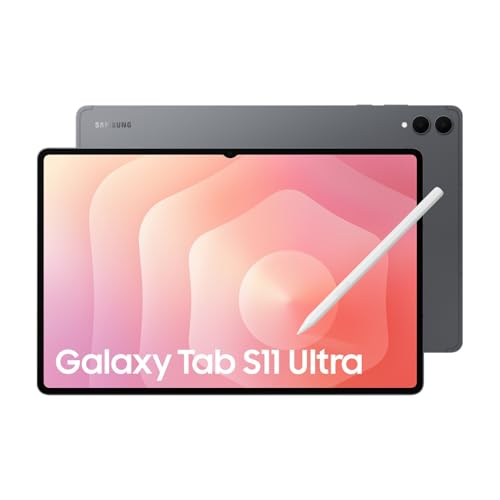
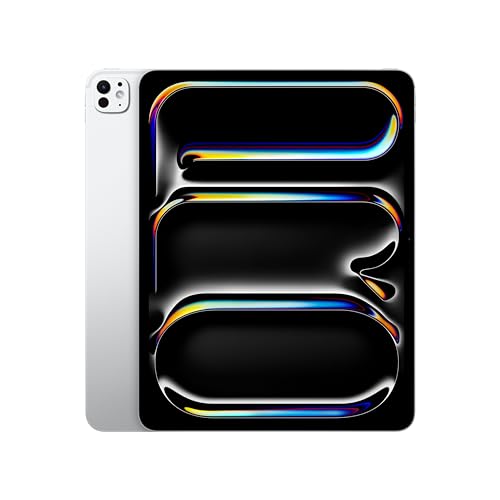
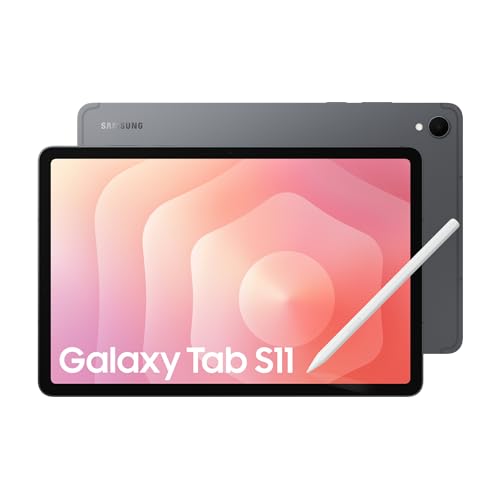
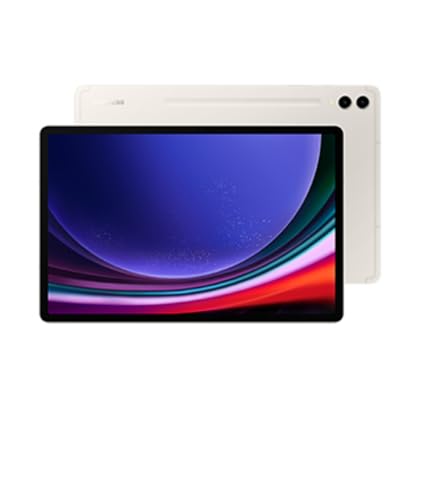
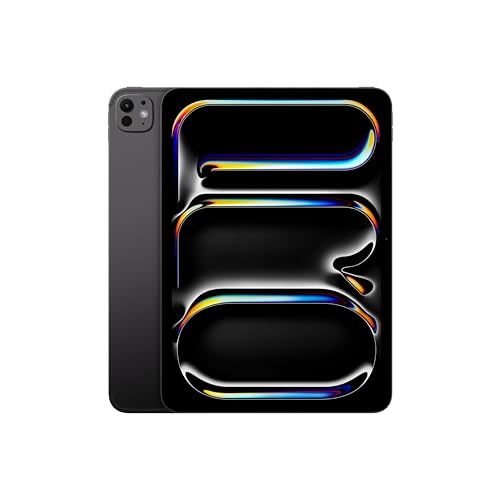
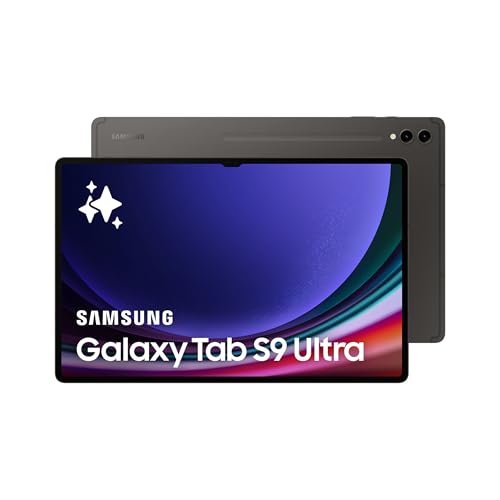
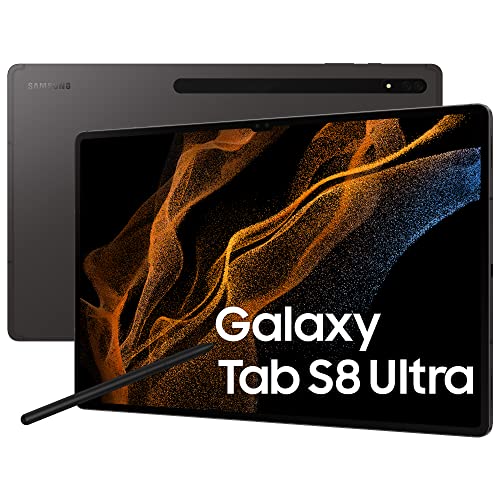
- Standalone tablets: Standalone tablets work without a computer connection and combine drawing and general use. The iPad Pro with Apple Pencil and Samsung Galaxy Tab S series are examples. They run drawing apps directly, so you can create anywhere. They are versatile but more expensive.
- Graphics tablets: These tablets connect to a computer and work with a stylus. They do not have a screen, so you draw on the surface while looking at the monitor. Popular brands include Wacom Intuos, which artists use for precise control. They are reliable for professional design and illustration.
- Pen display tablets: These tablets have a screen that you can draw on directly with a stylus. They give a natural experience because you see your strokes where you place the pen. Models like Wacom Cintiq or Huion Kamvas are widely used. They usually cost more than basic graphics tablets.
In this article, we will talk about standalone tablets. They work on their own because they have a processor, storage, and operating system built in.
What’s the advantage of a standalone tablet vs. a pen display?
The advantage of a standalone tablet vs. a pen display is as follows:
- Independence: A standalone tablet works on its own because it has a processor, storage, and an operating system. You do not need to connect it to a computer.
- Portability: You can draw anywhere with a standalone tablet, while a pen display requires a computer connection. This makes a standalone model better for travel or outdoor work.
- Versatility: A standalone tablet can run both drawing apps and other software. A pen display is only an input device, so it depends fully on the computer.
- Power source: Standalone tablets run on an internal battery, which means you can use them without cables. A pen display needs constant power and a computer link.
- Use case: Standalone tablets like the iPad Pro or Samsung Galaxy Tab S serve as both creative and everyday devices. Pen displays like Wacom Cintiq or Huion Kamvas focus only on drawing.
Do standalone tablets for drawing come with a stylus?
Standalone tablets for drawing often come with a stylus, but it depends on the brand and model.
Some devices include it in the box (iPad Pro with Apple Pencil compatibility or Samsung Galaxy Tab S series with the S Pen), while others require you to buy the pen separately. The presence of a stylus is key because without it you cannot use the tablet effectively for drawing.
In many cases, the stylus is designed specifically for that device, which means pressure sensitivity, tilt recognition, and palm rejection work better. For example, Apple Pencil is sold separately but integrates tightly with iPads, while Samsung’s S Pen is usually included with the Galaxy Tab S tablets. On the other hand, some Windows-based standalone tablets, like Microsoft Surface Pro, may or may not come with the Surface Pen in the package, so you need to check before buying.
Do standalone tablets support pressure sensitivity?
Standalone tablets support pressure sensitivity if they are paired with a compatible stylus.
Devices like the iPad Pro with Apple Pencil or Samsung Galaxy Tab S series with the S Pen detect different pressure levels, which means lines can appear thinner or thicker depending on how hard you press. This feature helps artists create shading, depth, and more natural strokes.
What apps can I use for drawing on a tablet?
You can use many apps for drawing on a tablet, and the most common ones are the following:
- Procreate: This app is popular on iPad and has many brushes, layers, and tools for professional drawing and painting. It runs fast and is designed only for iOS.
- Adobe Photoshop Sketch: It connects well with Adobe Creative Cloud, so you can move your drawings to Photoshop or Illustrator on a computer. It is good for sketches and basic illustrations.
- Adobe Fresco: This app has live brushes that behave like real oil or watercolors. It works well with styluses such as Apple Pencil and supports vector and raster formats.
- Clip Studio Paint: It is strong for comics, manga, and detailed illustrations. It supports layers, advanced pen settings, and professional coloring tools.
- Autodesk SketchBook: It has a clean interface and many brush types. It supports both fast sketches and detailed drawings.
- MediBang Paint: This app is lightweight and works well on tablets with less power. It has comic tools, speech bubbles, and cloud saving for projects.
- ArtRage: It simulates traditional art with oil paints, pastels, and watercolors. It gives a natural painting feel with realistic textures.
Which brands make the best tablets for drawing?
The best tablet brands for drawing are as follows.
- Samsung (Overall score: 9.1 points)
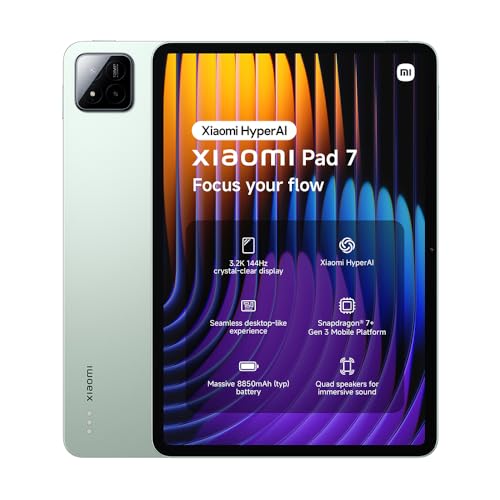
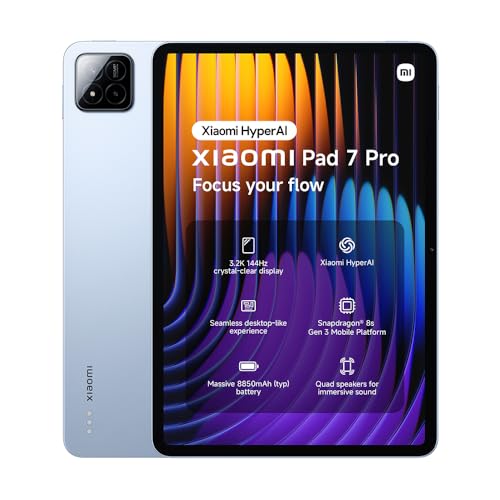
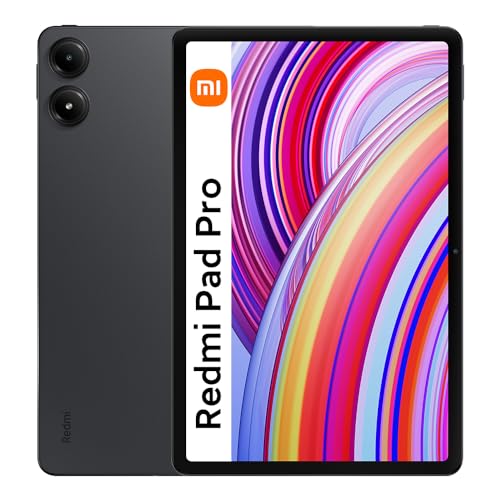
- Xiaomi (Overall score: 8.9 points)
- Apple (Overall score: 8.9 points)
The chart below ranks tablet brands for drawing based on their overall scores.
[horizontal-chart-01488632309037166913033181004522211008090023044014]
How much do standalone tablets for drawing cost?
Standalone tablets for drawing cost anywhere from around £260 to more than £1,700, depending on the brand, hardware, and display quality.
Entry-level models start in the lower range with smaller screens and less processing power, while professional tablets such as the iPad Pro or high-end Samsung Galaxy Tab S devices reach well above £850. Prices rise further when you choose larger storage, stronger processors, or accessories like advanced styluses.
The chart below illustrates how prices are distributed across standalone tablets for drawing.
[vertical-chart-02907476378568888988112154769101017161913617782206]
What else should I consider when choosing the right standalone tablet for drawing?
When choosing the best standalone tablet for drawing, you should consider the following key technical specifications and features:
- Display quality and screen specifications: Resolution directly affects artwork precision and detail clarity. Higher resolutions like 4K provide sharper lines and better image quality for professional work. Color accuracy becomes critical for professional artwork as wide color gamut coverage like Adobe RGB or DCI-P3 reproduces more colors accurately. The iPad Pro series features Ultra Retina XDR displays with excellent color reproduction, while Microsoft Surface Pro models use PixelSense technology for crisp visuals.
- Pen performance and sensitivity levels: Pressure sensitivity levels determine how naturally your stylus responds to different drawing pressures. Modern tablets range from 4,096 to 8,192 pressure levels, with higher numbers providing more nuanced stroke control. Tilt recognition allows natural shading techniques by detecting stylus angle against the screen surface. Wacom's Pro Pen 2 and Apple Pencil Pro excel in this area, while Samsung's S Pen also delivers precise pressure response.
- Processing power and performance capabilities: CPU strength and RAM capacity directly impact your ability to handle complex artwork files and multitasking. Professional work requires at least 6GB RAM and quad-core processors to run demanding creative software smoothly. Apple's M4 chip in iPad Pro models and Intel Core i5-i7 processors in Surface Pro tablets provide excellent performance for heavy creative workloads. Storage capacity affects how many high-resolution projects you can store locally, with 256GB recommended for professional use.
- Battery life and portability balance: Extended battery performance becomes essential for mobile artwork creation and outdoor sketching sessions. Tablets must maintain consistent performance throughout long drawing sessions without degrading pen responsiveness. Screen size creates a trade-off between workspace area and device portability - larger screens offer more drawing space but reduce mobility. Weight distribution affects comfort during extended handheld use sessions.
- Operating system and software compatibility: Different platforms support varying creative applications and workflows. iPadOS excels with Procreate but has fewer professional desktop applications, while Windows tablets run full Creative Suite programs. Android tablets offer good balance but have fewer specialized art applications available. Each system's ecosystem determines which apps, cloud services, and workflow integrations you can access.
- Build quality and durability factors: Screen protection and device construction affect longevity under regular artistic use. Glass quality impacts pen-on-screen texture and drawing experience, while device materials determine resistance to wear and impacts. Express keys and customizable shortcuts can accelerate workflow when positioned ergonomically. Some tablets include screen protectors or textured surfaces that simulate paper drawing feel.
- Connectivity and expansion options: USB-C ports, wireless capabilities, and external storage support expand your creative possibilities. Some tablets support external monitors for extended workspace or can connect to additional storage devices for large file management. Wireless connectivity enables cloud synchronization and remote collaboration features that modern creative workflows often require.