

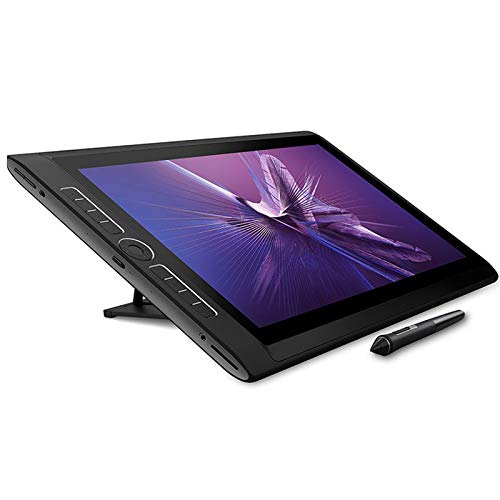
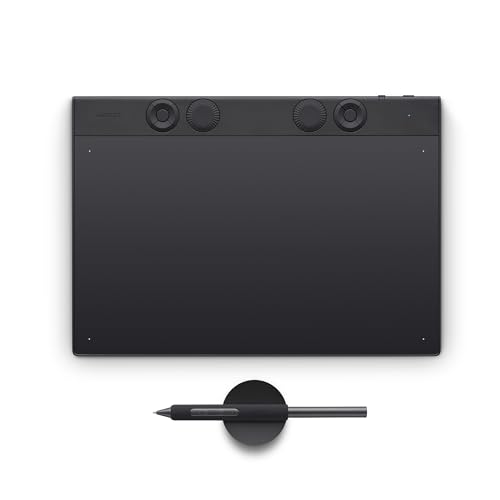
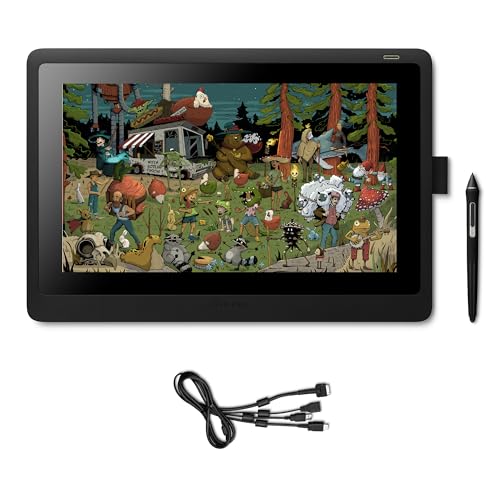
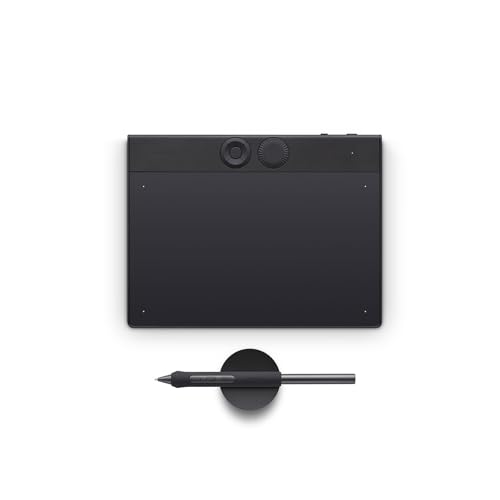
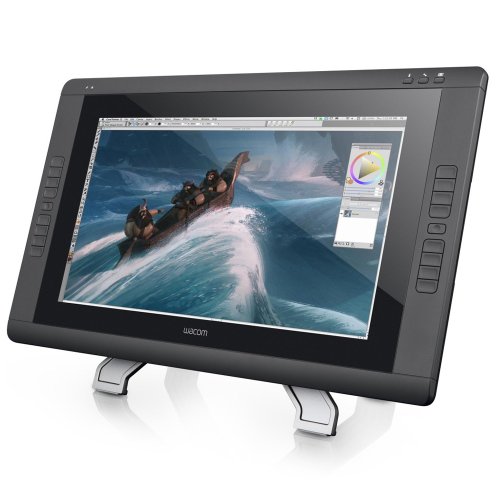
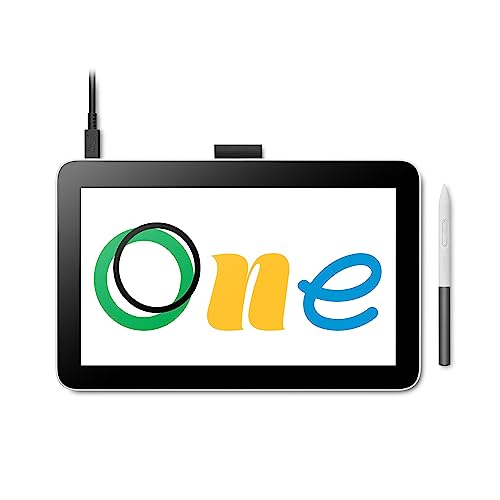
Wacom drawing tablets have an average overall score of 7.8, ranking #2 among drawing tablet brands, and a user rating of 9.3, placing them at #1 based on user reviews.
Wacom is strongest if you want mature pen performance, broad creative-software compatibility, and a lineup spanning simple pen tablets, professional pen displays, and standalone options. Its Intuos and Cintiq families are especially relevant to illustrators, photo editors, and studio users.
The main trade-off is price. Wacom often costs more than value-focused competitors at the same screen size, so it suits buyers who prioritize pen feel, ecosystem maturity, and workflow stability.
The chart below compares drawing tablet brands by average overall score.
[horizontal-chart-08051336327100176140083205511039624666222915896643]
What are the main advantages of Wacom drawing tablets?
The following advantages matter most on Wacom drawing tablets.
- Pen performance: Wacom is known for precise stylus tracking, low initial activation force, and a natural pen feel that works well for sketching, retouching, and pressure-sensitive brush work. That matters most if you draw for long sessions and want strokes to feel predictable instead of twitchy.
- Software compatibility: Wacom tablets are widely supported in apps such as Photoshop, Illustrator, Clip Studio Paint, Krita, and ZBrush, so setup is usually easier in mixed creative workflows. This reduces friction if you switch between several desktop tools or share devices in a studio.
- Broad lineup: The range covers entry-level pen tablets, mid-range creative models, premium pen displays, and even a few self-contained options. That makes it easier to stay within one ecosystem as your needs move from hobby use to professional illustration.
- Build quality: Many Wacom models use solid casings, stable stands or accessory support, and accessories that feel designed for everyday production work. This helps if the tablet will be moved often, used in classes, or kept on a desk for years.
- Professional ecosystem: Wacom has strong brand recognition in design, animation, and photo-editing circles, plus many accessories, nib options, mounts, and workflow habits built around its products. Buyers who already know the ecosystem often lose less time to adjustment and troubleshooting.
What are the main disadvantages of Wacom drawing tablets?
The main disadvantages of Wacom drawing tablets are as follows.
- Higher prices: Wacom usually charges more than Huion or XP-Pen for comparable sizes, especially once you move into Cintiq Pro and MobileStudio tiers. That premium can be hard to justify if you mainly want a practice tablet or a second screen for casual art.
- Fewer budget features: Entry-level Wacom models are often simpler than similarly priced rivals, with fewer shortcut controls, less aggressive bundles, or smaller active areas for the money. Budget shoppers may therefore get better raw value elsewhere.
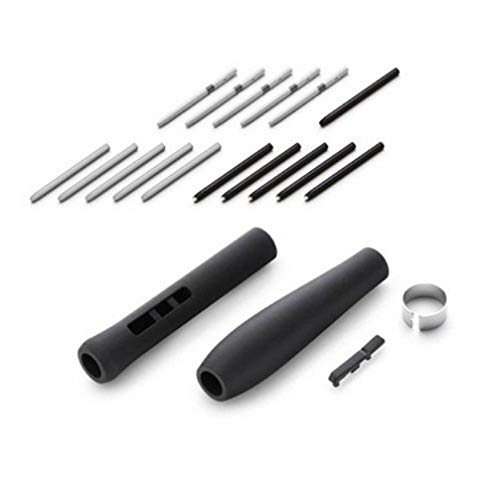
- Expensive accessories: Official stands, replacement pens, texture sheets, or other accessories can add a lot to the total cost. This matters if you want a full desktop setup rather than just the tablet itself.
- Older premium models still cost a lot: Several long-running Wacom models remain expensive even when their competition has caught up on resolution, laminated screens, or shortcut features. Buyers should look carefully at generation differences rather than assuming every Wacom is automatically ahead.
- Less value-focused experimentation: Wacom tends to move more cautiously on aggressive pricing and niche form factors than some Chinese rivals. If you want the most screen size or the most features per dollar, the brand is not always the easiest fit.
Wacom drawing tablets are made by Wacom Co., Ltd., a Japanese company that focuses on pen input devices, pen displays, and digital-ink technology. The brand is especially well known in illustration, graphic design, animation, and photo-editing workflows.
In practice, Wacom covers several levels of the market. Intuos and One models target entry-level or student use, while Cintiq and Cintiq Pro serve more demanding creative work. That long focus on stylus hardware is one reason many artists treat Wacom as the reference brand in this category.
What are the main Wacom drawing tablet series?
The main Wacom drawing tablet series are as follows.
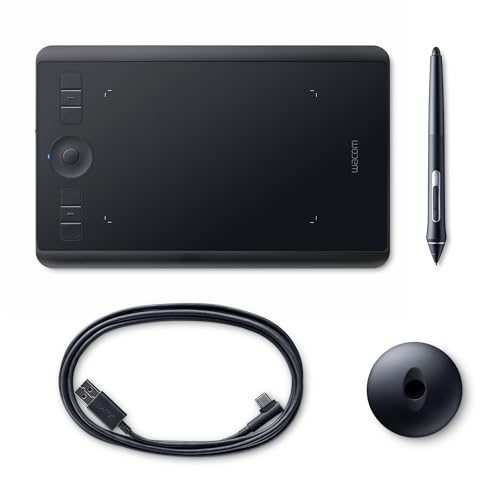
- Intuos: This is Wacom's mainstream pen-tablet family without a built-in screen. It suits beginners, students, and general creative users who want a portable drawing surface for a laptop or desktop.
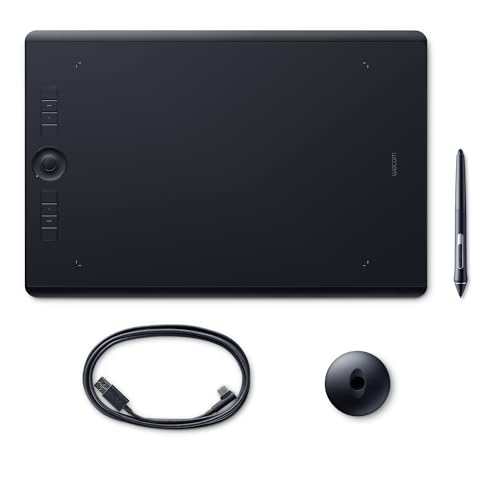
- Intuos Pro: This is the more advanced pen-tablet family for users who want better build quality, more professional workflow features, and a more premium drawing feel than standard Intuos models provide.
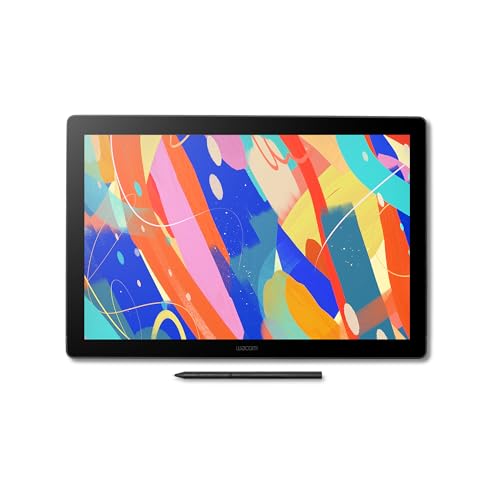
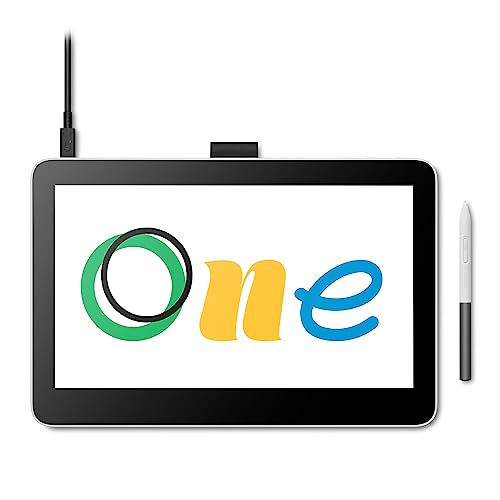
- One by Wacom / Wacom One: These are the simpler entry-level families. One by Wacom focuses on straightforward pen tablets, while Wacom One branding is also used on affordable pen displays for first-time artists and classroom use.
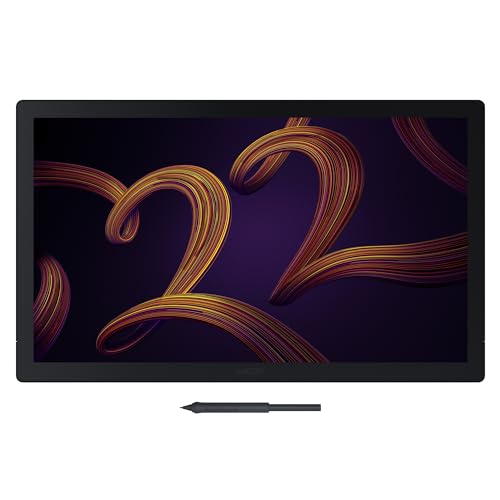
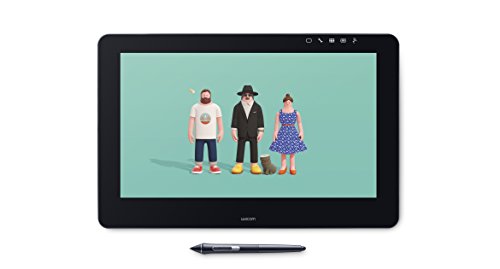
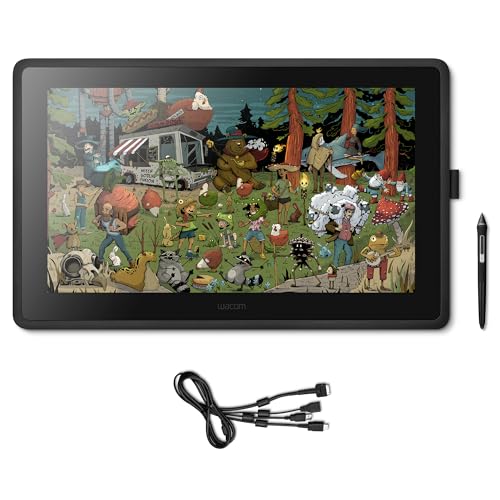
- Cintiq: This is the core pen-display line. It targets artists who want to draw directly on the screen but do not need the highest-end color, resolution, or studio accessories of the Pro range.
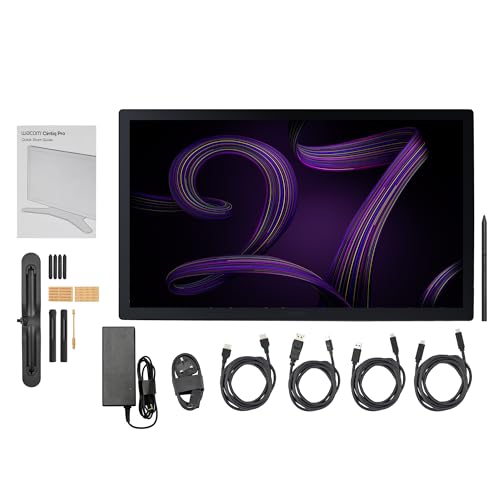
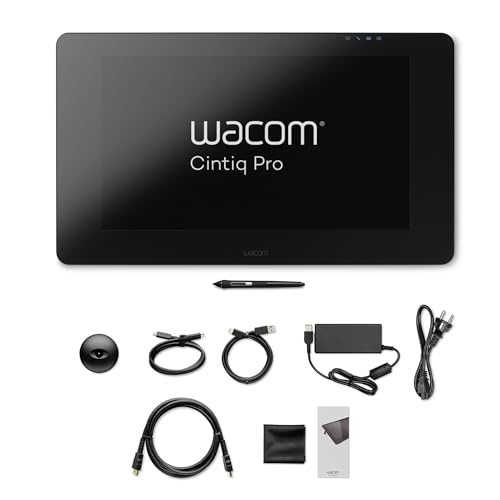
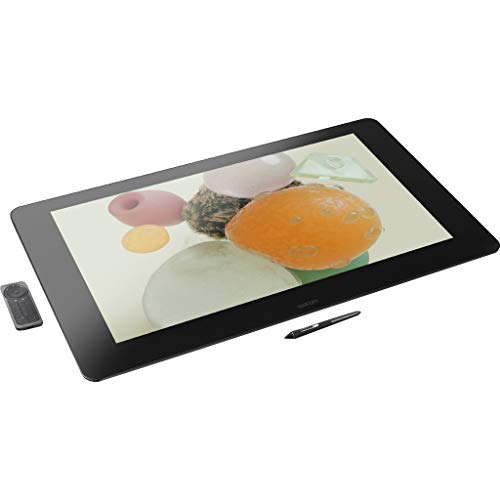
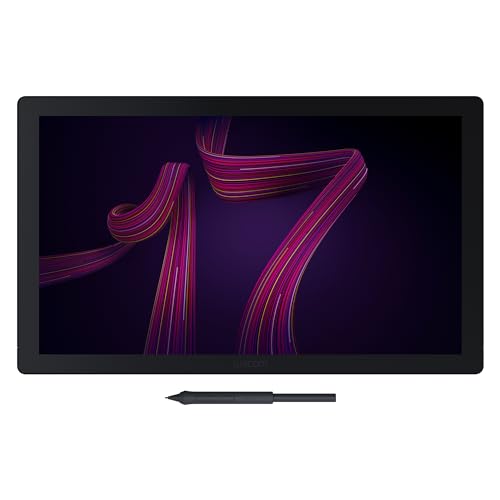
- Cintiq Pro: This is Wacom's premium pen-display family with larger sizes, more advanced panel options, and a stronger fit for professional illustration, editing, and studio production.
- Movink / MobileStudio Pro: These are the more specialized lines. Movink targets portable OLED pen-display use, while MobileStudio Pro combines a screen tablet with standalone computer hardware for buyers who need an all-in-one creative workstation.
Wacom drawing tablets usually cost about £70 to well over £2,600, with the most common entry point sitting around basic Intuos and One models and the high end dominated by Cintiq and Cintiq Pro displays. In other words, Wacom covers both affordable starter tablets and some of the most expensive creative displays in the category.
What mainly pushes Wacom pricing up is the move from a simple screenless pen tablet to a larger laminated display with better color work, stronger build quality, and a more studio-focused feel. For many buyers, the most practical spending range is roughly £70 to £600, while the jump beyond that is easiest to justify if you specifically want a display-based workflow or a premium professional setup.
The graph below shows how prices are distributed across Wacom drawing tablets.
[vertical-chart-09292127752983418214033841426140167239230099169008]
Wacom drawing tablets usually compare with Huion models as the more premium and more established option. Wacom tends to win on pen feel, long-term workflow confidence, and brand trust, while Huion usually wins on price and on how much screen size or hardware you get for the money.
That makes Wacom the safer fit for professionals and buyers who want the most polished experience across creative software, especially if they work daily or care about color-critical display options. Huion is more appealing if you want strong features at a lower price and are comfortable trading some premium refinement for better value.
When choosing the best Wacom drawing tablet, keep the following factors in mind.
- Tablet type: Decide first whether you want a screenless Intuos-style tablet or a Cintiq display, because that changes the price, desk setup, and drawing feel far more than minor spec differences do.
- Size and workspace: Smaller Wacom tablets are easier to place and cheaper to buy, while larger pen tablets and displays feel more natural for longer strokes, multi-window work, and detailed illustration.
- Pen and surface feel: Wacom is often chosen for pen consistency, so it is worth checking whether you care more about a simple reliable feel or about a premium textured surface and more advanced pro-level control.
- Display quality: On Cintiq models, pay close attention to screen size, resolution, and color coverage, because those factors matter much more for serious art and photo work than shortcut counts alone.
- Connectivity and compatibility: Make sure the tablet matches your computer, cable tolerance, and software workflow, especially if you use a compact desk, multiple monitors, or a Mac-based setup.
- Budget ceiling: Wacom ranges from affordable beginner tablets to very expensive professional displays, so it helps to decide early whether you need dependable basics or a true studio-grade setup.