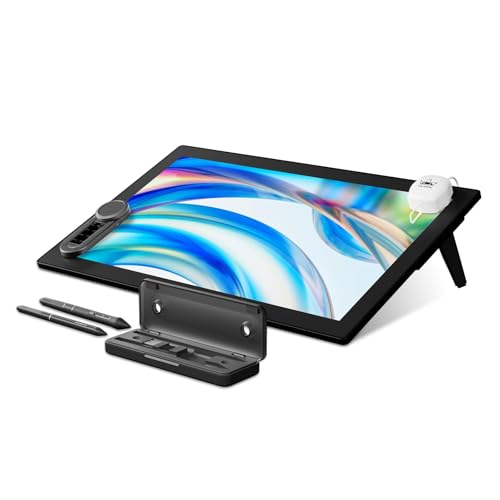
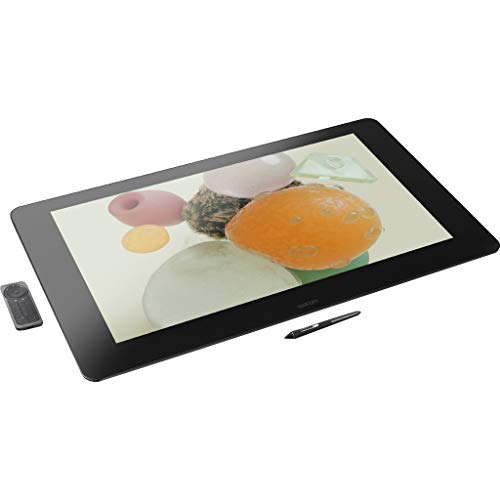
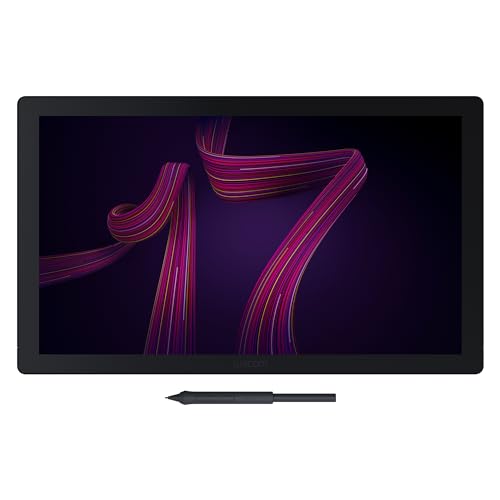
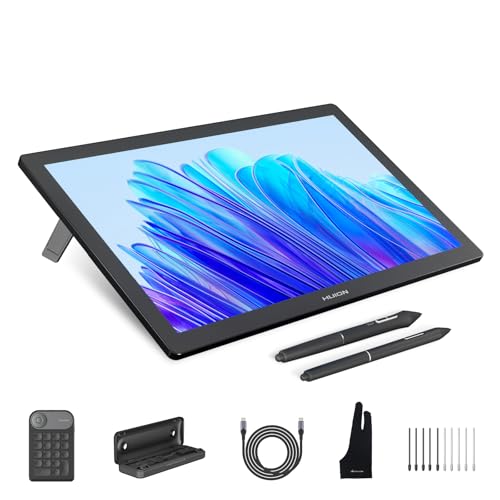
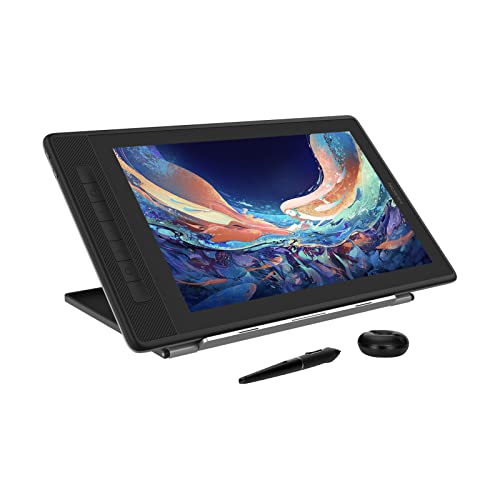
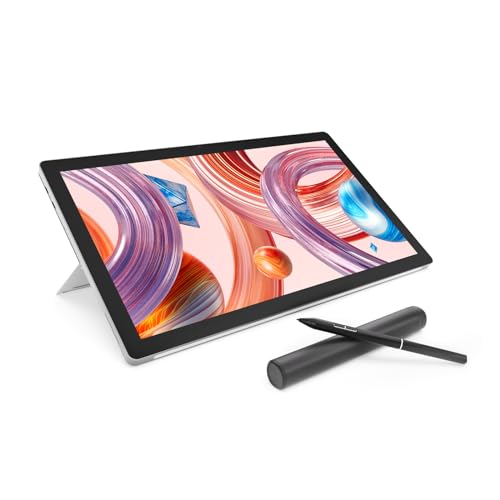
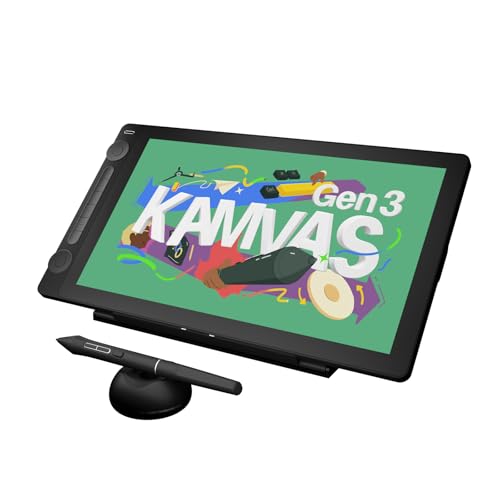
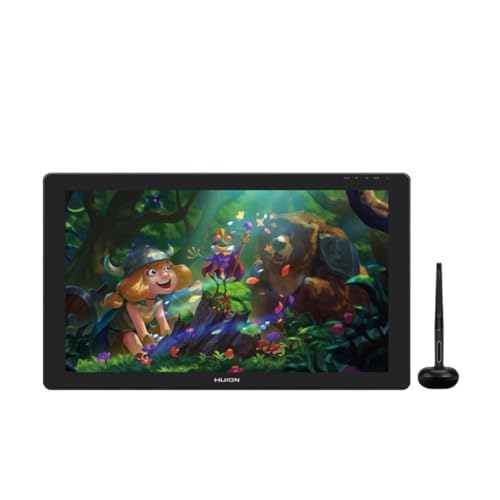
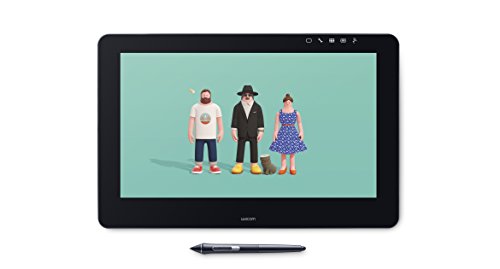
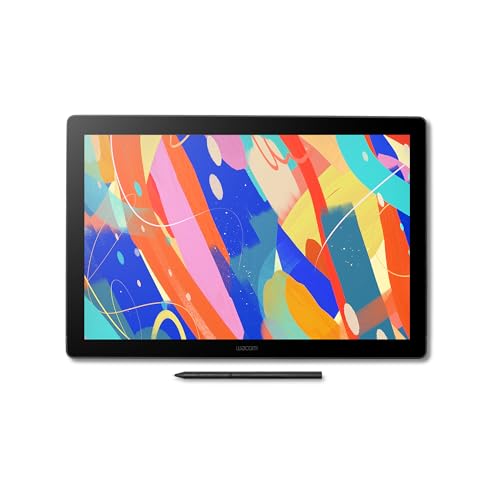
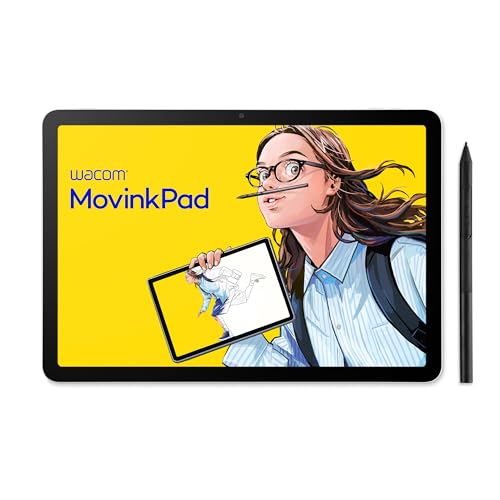
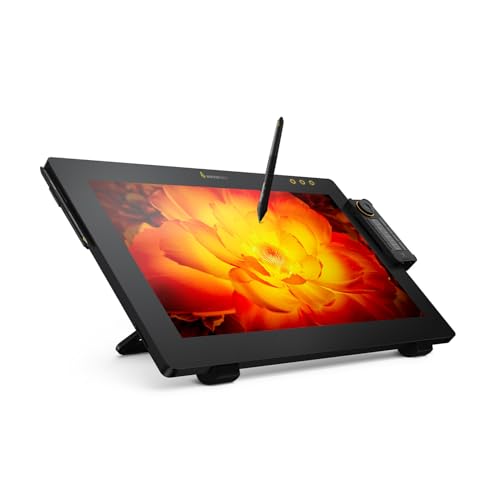
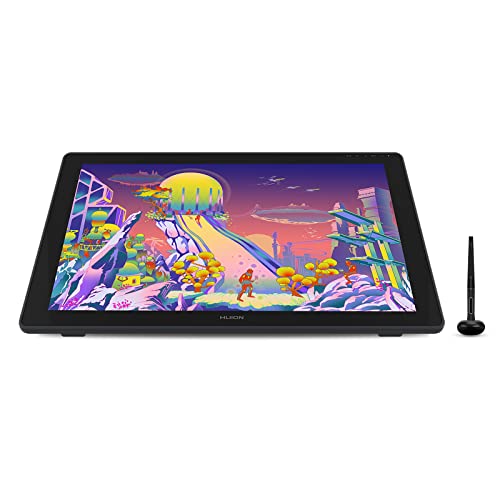
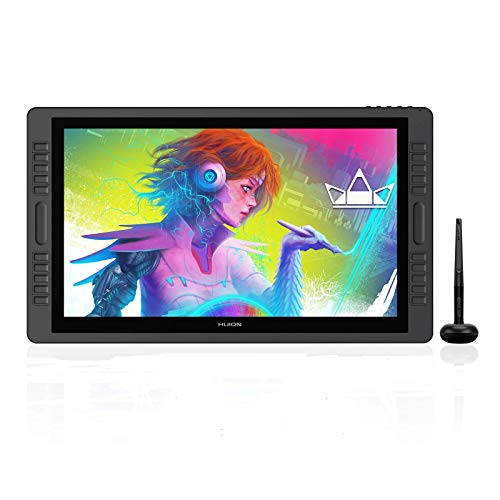
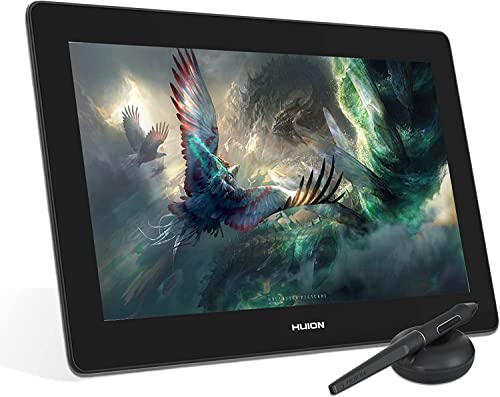
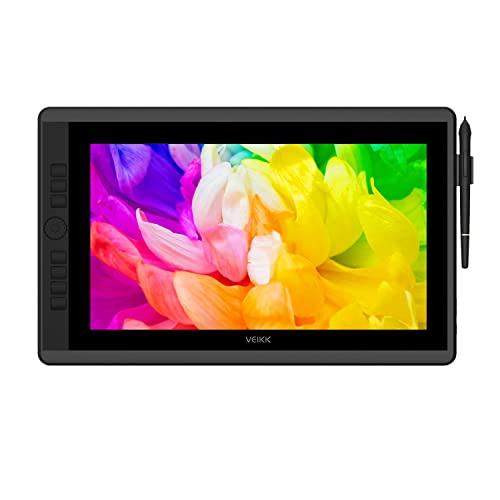
Which brands make the best drawing tablets for PC?
The best drawing tablet brands for PC are as follows.
1. HUION (Average overall score: 7.8)
2. Wacom (Average overall score: 7.8)
3. XP Pen (Average overall score: 7.3)
The chart below compares drawing tablet brands for PC by average overall score.
[horizontal-chart-09315056908362752644055093750058972837413508719993]
What makes a drawing tablet suitable for PC use?
A drawing tablet is most suitable for PC use when it combines the following strengths:
- Stable desktop drivers: Reliable Windows and macOS drivers matter because they control pressure behavior, mapping, shortcut settings, and overall pen consistency.
- Low-latency pen input: Better tablets keep lag low and pen tracking smooth, which matters more once you start sketching, retouching, or editing with precision.
- Practical desk connectivity: USB-C, HDMI, or a clean 3-in-1 cable setup makes it easier to connect the tablet without awkward adapters or clutter.
- Software-friendly controls: Express keys, dials, and pen-button customization help a tablet fit common PC workflows in Photoshop, Clip Studio Paint, Blender, or Lightroom.
- Enough active area for your monitor: Bigger screens and multi-monitor setups often feel better with a medium or large tablet, while compact models suit lighter desktop use.
What software compatibility matters on a drawing tablet for PC?
The software compatibility points that matter most on a drawing tablet for PC are the following:
- Creative-app support: The tablet should work cleanly with major software such as Photoshop, Illustrator, Clip Studio Paint, Krita, Blender, and Lightroom.
- Driver stability: A tablet can list many apps on paper, but stable drivers are what actually keep pressure curves, pen buttons, and mapping controls working properly.
- Pressure and tilt behavior: Better compatibility means the software recognizes pressure sensitivity and tilt correctly instead of giving inconsistent brush response.
- Shortcut customization: Stronger desktop software support makes it easier to map express keys, dials, and pen buttons to the commands you use most.
- Multi-monitor and display mapping: On PC setups with one or more monitors, good software support also means you can control exactly where the pen maps without cursor jumps or scaling issues.
What connections matter on a drawing tablet for PC?
The connections that matter most on a drawing tablet for PC are the following:
- USB-C: This is the cleanest modern option because it can simplify power, data, and sometimes display handling through one connector.
- HDMI on pen displays: Display tablets often need HDMI or a similar video path so the screen can act like a proper external display.
- USB-A compatibility: Older desktops and accessories still rely on USB-A, so included adapters or hybrid cables can make setup much easier.
- 3-in-1 cable designs: Many affordable display tablets use a combined cable for video, data, and power, which is practical but less tidy than a full USB-C solution.
- Adapter support and cable length: On a PC desk, the tablet is much easier to live with if the cables reach comfortably and the brand includes adapters for the ports you actually have.
How responsive are drawing tablets for PC?
Drawing tablets for PC are usually quite responsive now, especially once you move beyond the weakest entry-level models. Many of the stronger options pair 8192 pressure levels with report rates around 200 RPS or higher, which is enough for smooth cursor movement, clean line transitions, and more natural brush control in desktop apps.
Responsiveness depends on more than pen specifications alone. Driver quality, USB stability, display latency on pen displays, and how well the tablet integrates with Windows or macOS all affect whether the pen actually feels immediate in use.
For everyday PC drawing, a responsive tablet should register light strokes reliably, keep lag low during longer lines, and avoid wobble or hesitation around the edges. That is the difference between a tablet that merely works and one that stays comfortable for serious creative sessions.
The graph below shows the distribution of report rates among drawing tablets for PC.
[vertical-chart-17772699343046372270076808630995190787631722182829]
What price range is reasonable for a drawing tablet for PC?
A reasonable price range for a drawing tablet for PC is usually about £70 to £770, with many of the strongest value options sitting between £130 and £430. At the low end you mainly get smaller screenless tablets or simpler display models, while the upper part of the range adds better build quality, larger work areas, and stronger screen hardware.
What you are really paying for on PC is not just pen pressure numbers, but cleaner drivers, easier connectivity, more refined shortcut controls, and on pen displays a better panel with less parallax and stronger color performance. For many desktop users, the sweet spot is in the mid-range, where the tablet feels stable and responsive without pushing you into expensive studio-focused hardware.
The graph below shows how prices are distributed across drawing tablets for PC.
[vertical-chart-06417137447446731774030354619869771662480761479723]

What should you consider while choosing a drawing tablet for PC?
When choosing a drawing tablet for PC, keep the following checks in mind:
- Driver quality: Stable Windows and macOS drivers matter more than a long feature list, because they determine pressure behavior, cursor mapping, and shortcut reliability.
- Software support: Make sure the tablet works properly with the apps you actually use, especially Photoshop, Illustrator, Clip Studio Paint, Krita, Blender, or Lightroom.
- Active area and desk fit: A tablet should match your monitor size and workspace. Very small tablets can feel cramped, while very large ones can be awkward on compact desks.
- Connection setup: Check whether the tablet uses USB-C, HDMI, or a 3-in-1 cable, and make sure your PC has the right ports or adapters.
- Pen behavior: Look beyond pressure-level marketing and focus on light-stroke registration, tilt support, edge accuracy, and overall cursor smoothness.
- Display versus screenless design: A pen display feels more direct, but a screenless tablet is lighter, cheaper, and often easier to integrate into a normal desktop setup.
- Shortcut controls: Express keys, dials, and pen buttons can improve workflow a lot if they are easy to map and comfortable to reach.